Adding Machinery to a Site from a Mobile |
  
|
Adding Machinery to a Site from a Mobile |
|
The mobile app includes the option to add machinery to a Site and this data can now be imported into Site Manager. The following Use Cases show how Site Manager will handle various scenarios.
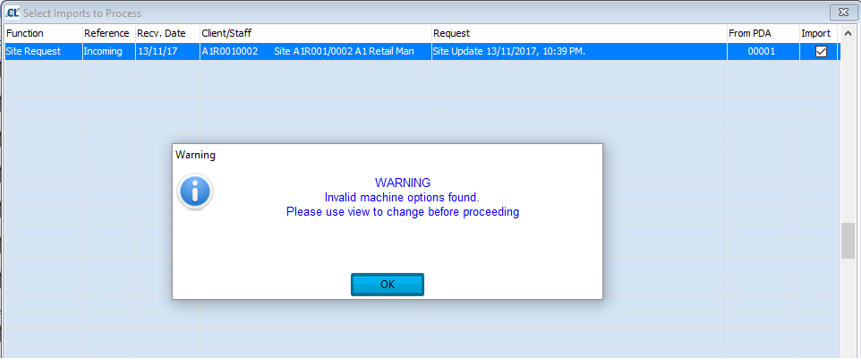
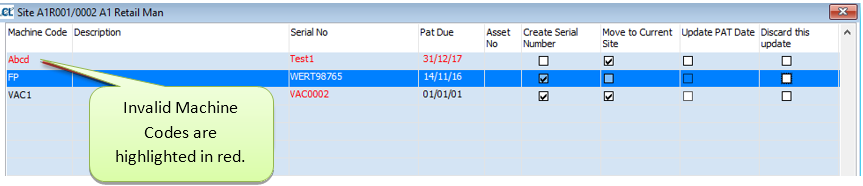
Case 1: The Machine code entered via the mobile app is not found in Site Manager
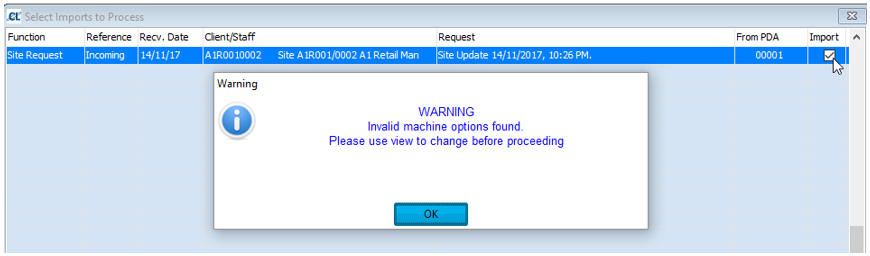
Results: A warning message appears declaring ‘Invalid machine options found.’ Invalid Machine codes are not imported.
Case 2: A valid Machine code is entered via the Mobile app
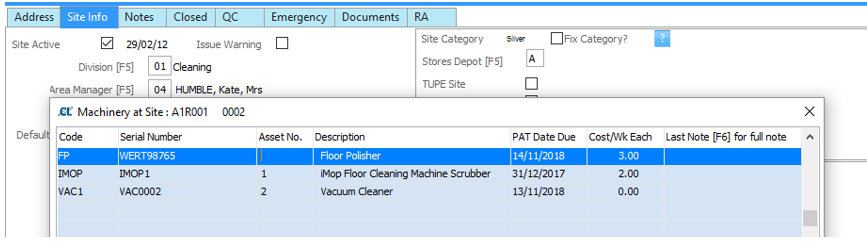
Results: Machine codes are imported in Site Manager, see:
Mobile > P. View Received Data

Clients > B. Maintain Sites > Machinery
Case 3: If the serial number does not match one on the system, the create Serial number tick box is enabled
Results:
Valid Serial Numbers for IMOP Machine code:

User entered a Serial Number not found for IMOP Machine Code:
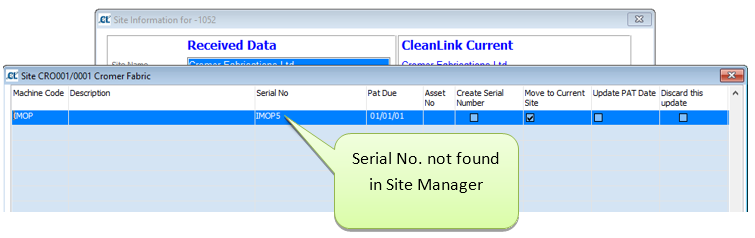
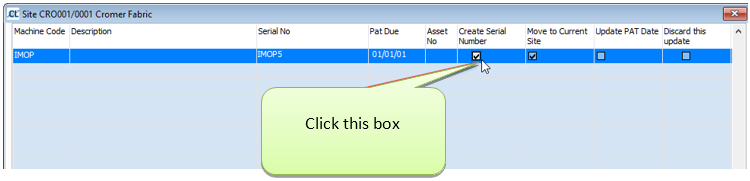
User click the checkbox button for Create Serial Number then click Import button.
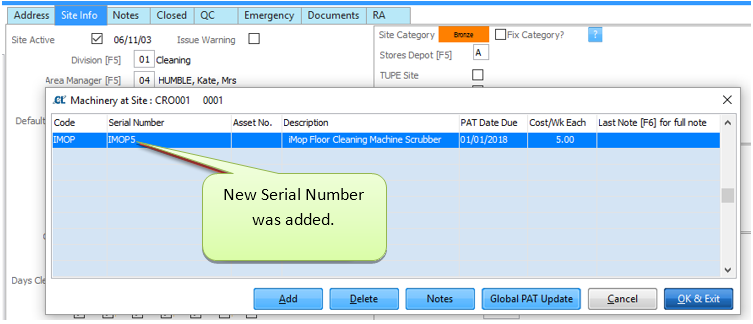
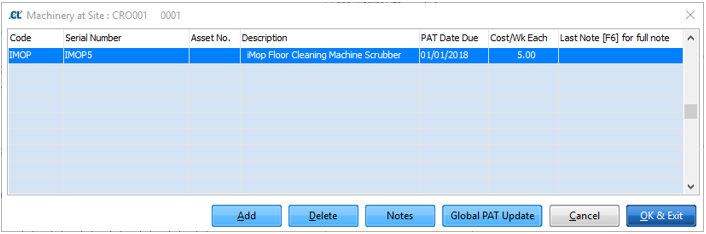
New Serial Number was added
Case 4: If the site code recorded against the machine is different (including not at a site) the Move to Current Site is enabled
Machine is in CRO001-0001 Site:
Machine is recorded in different site (H1001-0002):
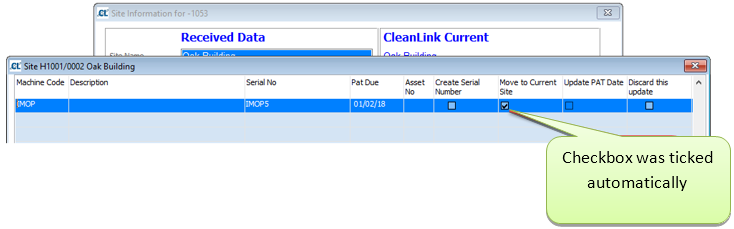
Machine is now moved to the new Site:
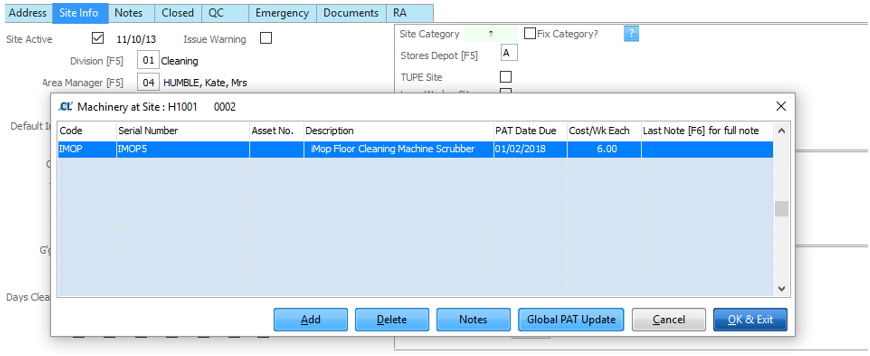
Case 5: If the new PAT due date is after the current PAT Due date, the Update Pat Date checkbox is enabled, and if checked and it is later, it will be updated:
Current Pat Due date on Site Manager is 14-Nov-2017:

New Pat Due date on Mobile App Site Update is also 30-Nov-2017:

After Import, the Pat Due Date is updated.

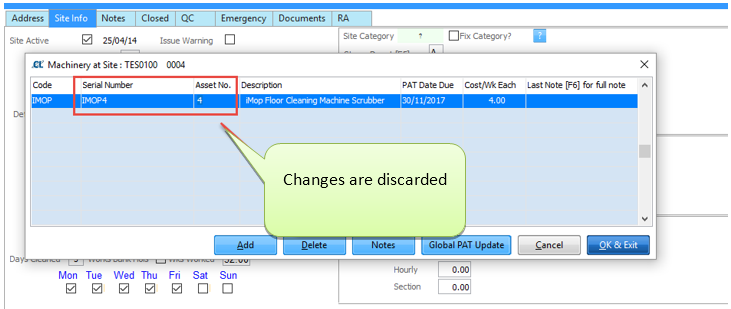
Case 6: If the Discard this Update is ticked, no changes for this machine will be made.
BEFORE CHANGES:

AFTER CHANGES: Tick Discard This Update checkbox button.

After clicking the import button, the changes are discarded.
Case 7: When the Import button is ticked for an update, each machine is checked that it is ok to be imported (or the discard has been ticked). If not then the import cannot be ticked.
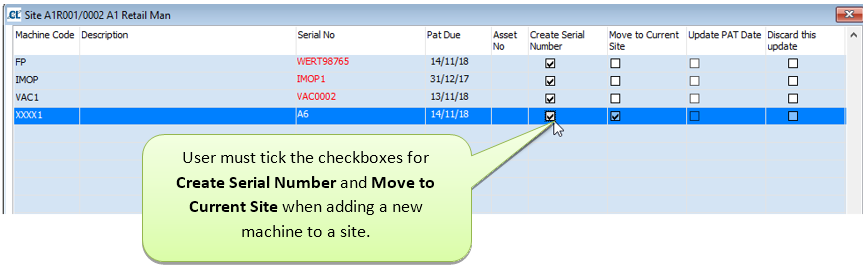
Result: When adding a new machine to a site, user has to tick the checkboxes for Create Serial Number and Move to Current Site when adding a new Machine with valid code and serial number.
Tick Import checkbox:
View the Machines:
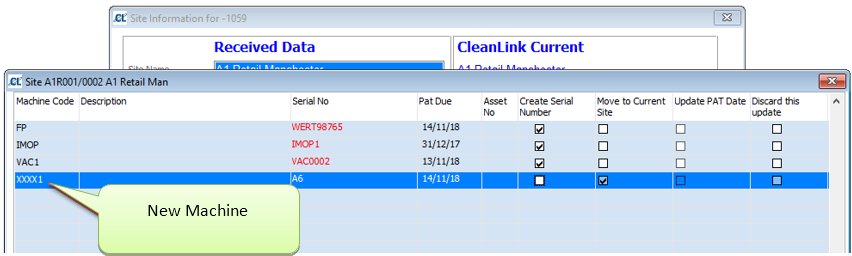
User must tick the checkboxes for Create Serial Number and Move to Current Site when adding new Machine to a site.