Viewing and Amending Stores Orders |
  
|
Viewing and Amending Stores Orders |
|
The default supplier is set in the following file within your Cleanlink Folders \\Cleanlink Settings\V1010\Magic.RNT. Changes to this file should only be undertaken by your IT expert or CleanLink Support
Once Stores orders have been received by Site Manger, they can be viewed and then imported by clicking the View/Modify tab and the following screen will be presented:
If the Stock not on File description appears either enter the correct stock code or, if not available, delete it.
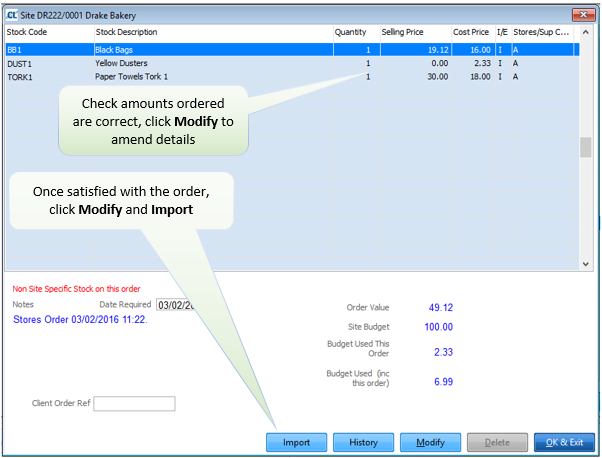
After clicking Import you will be able to process the stores order using the Import Stores button on the previous screen.