Designing your own Forms |
  
|
Designing your own Forms |
|
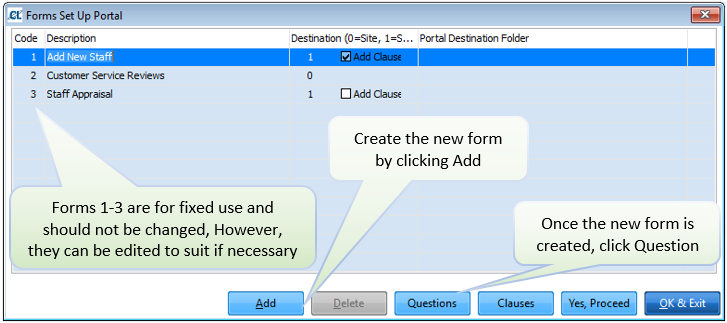
To create a new form go to Mobile > R. New Forms (Setups_Send).
PLEASE NOTE: Before making any changes to an existing form, please be aware that any changes may affect forms that have been sent from mobiles, but have not been processed. You are advised to ensure that any pending forms are completed, sent back to CleanLink and processed via the Received Data option
Once you have completed any changes to an existing form, you then need to ensure that it is sent to all the necessary mobiles, otherwise users will continue to send back outdated forms.
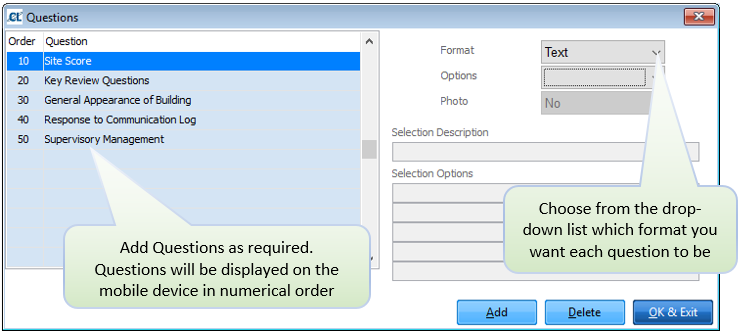
Under the Format section there are the following options which affect the response on the device:
Text: Allows the entry of free format text.
Header: Used to separate groups of questions. No input is required
Comment: Use this to capture a comment to give more information
Score: Allows entry of a score between 1 and 5
Date: Allows the entry of a date
Y/N: Provides the option to select a radio button (selecting turns it green, meaning yes)
Selection: Allows one of up to 5 options to be selected as the answer
Signature: Creates a signature box for providing a signature
Under the Options section there are the following options:
Bold: Question is displayed in bold font
None: No option selected
Required: Details must be entered for this question before the form can be completed and transmitted
If a question has Selection as the format, you must enter the Selection Description and you can add up to 5 Selection Options.
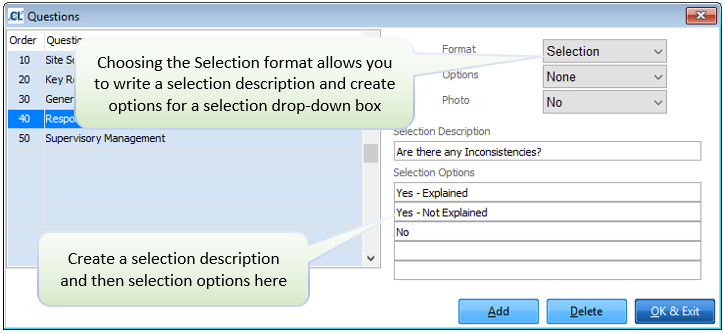
Once you have added all the items for the form, click OK & Exit
Select a mobile, or leave blank to send the form to all mobiles. Select Q. New Forms (Setups_Send) and the selected mobile devices will then be able to download the new form next time they synchronise the CleanLink Mobile App.