Creating P45s |
  
|
Creating P45s |
|
Overview
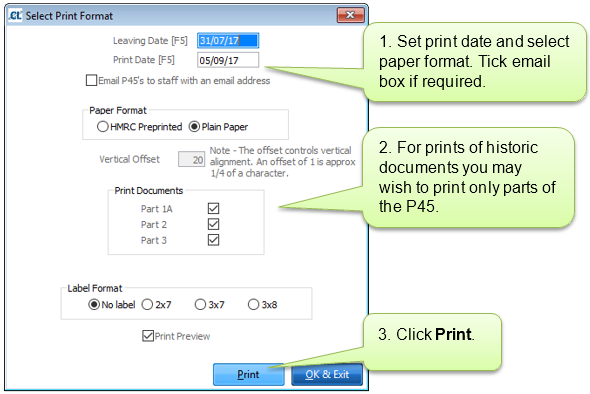
By law you must provide a P45 for all employees when they stop working for you. CleanLink enables you to do this for recent leavers after their final pay and to reprint historic P45’s where necessary. This process should be run once the payroll cycle containing the employees' final pay has been marked as “Completed”.
This option defaults to select those employees who have a leaving date set but whose status has not been set to left. You can also choose to set a leaving date range or select a Pay Period. You may also choose to include those employees whose status has been set to left.
Navigate to Pay > C. In Year Movements > A. P45 Printing.
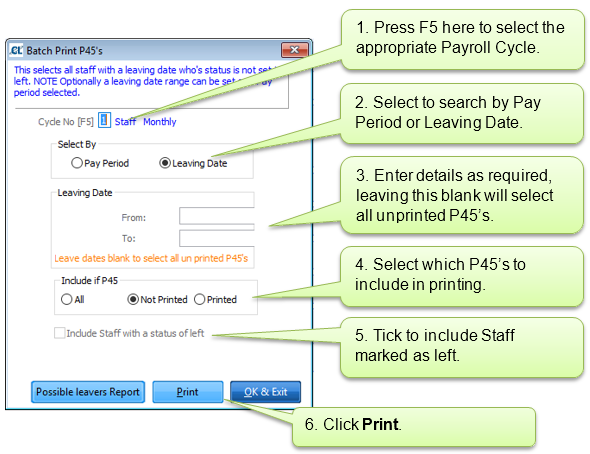
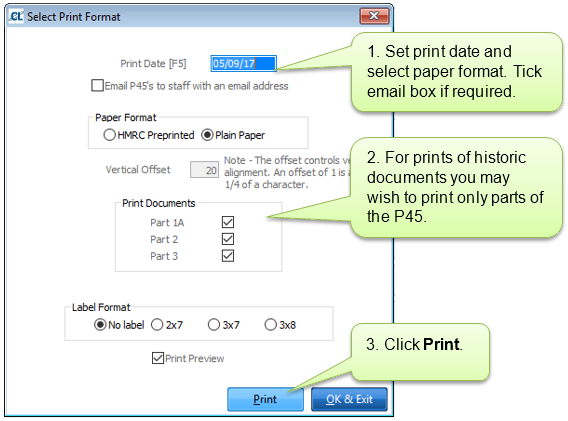
If P45’s are available the following window will appear.
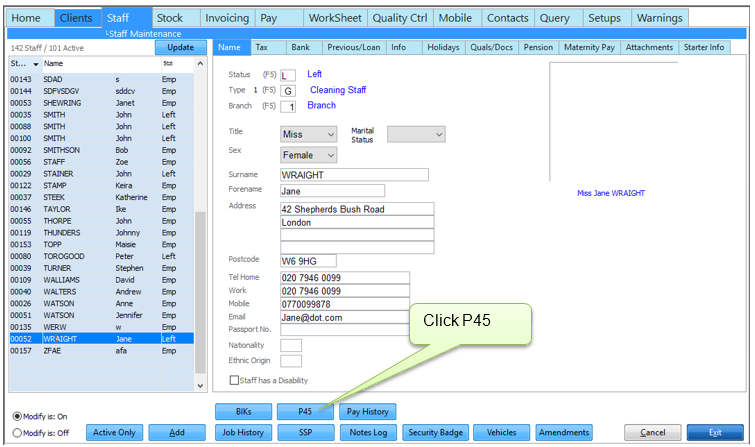
Once the employee has completed their final payroll cycle, go to Staff > (Select Employee) > P45.
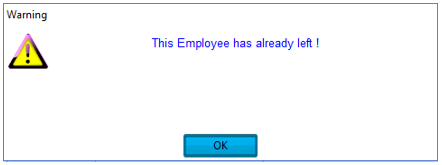
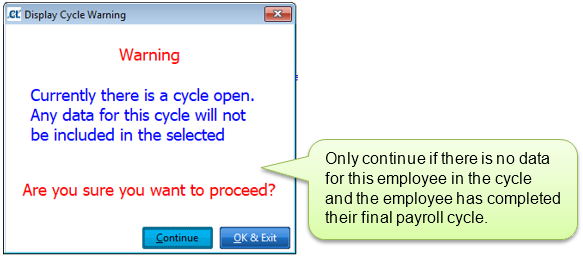
You may now see one or both of the following warning messages.
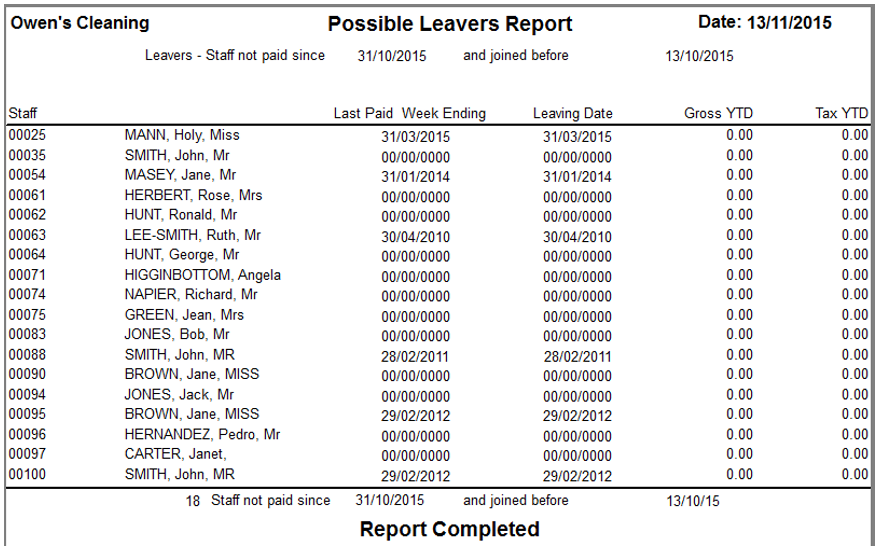
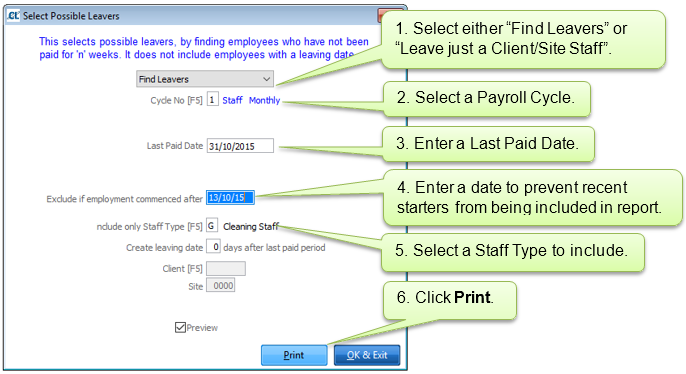
This report selects possible leavers, by finding employees who have not been paid for 'n' weeks. It does not include employees with a leaving date.
Navigate to Pay > C. In Year Movements > A. P45 Printing > Possible Leavers Report.
Example Report: