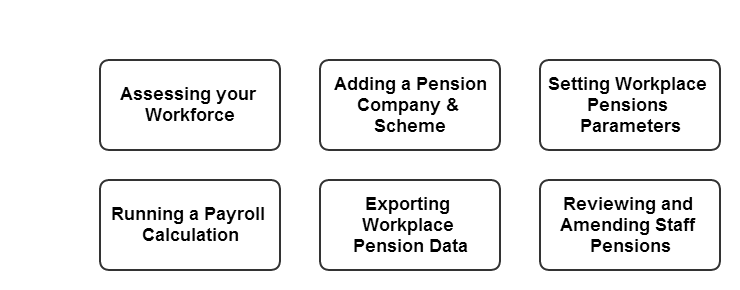
Workplace Pensions |
  
|
Workplace Pensions |
|
Overview
This document describes how CleanLink have implemented Pensions functionality to support the change in UK law that requires UK Employers to provide a qualifying Workplace Pension Scheme for their workforce.
As an Employer, the main things you must do are:
1. Provide a qualifying Pension Scheme for your workers.
2. Automatically enrol all eligible jobholders onto the scheme.
3. Pay employer contributions for eligible jobholders to the scheme.
4. Tell all eligible jobholders that they have been automatically enrolled and they have the right to opt out if they want to do so.
5. Register with the Pensions Regulator and provide details of your qualifying scheme and the number of people that you have automatically enrolled.
For comprehensive details of the new duties and requirements for Employers, go to:
http://www.thepensionregulator.gov.uk/automatic-enrolment.aspx
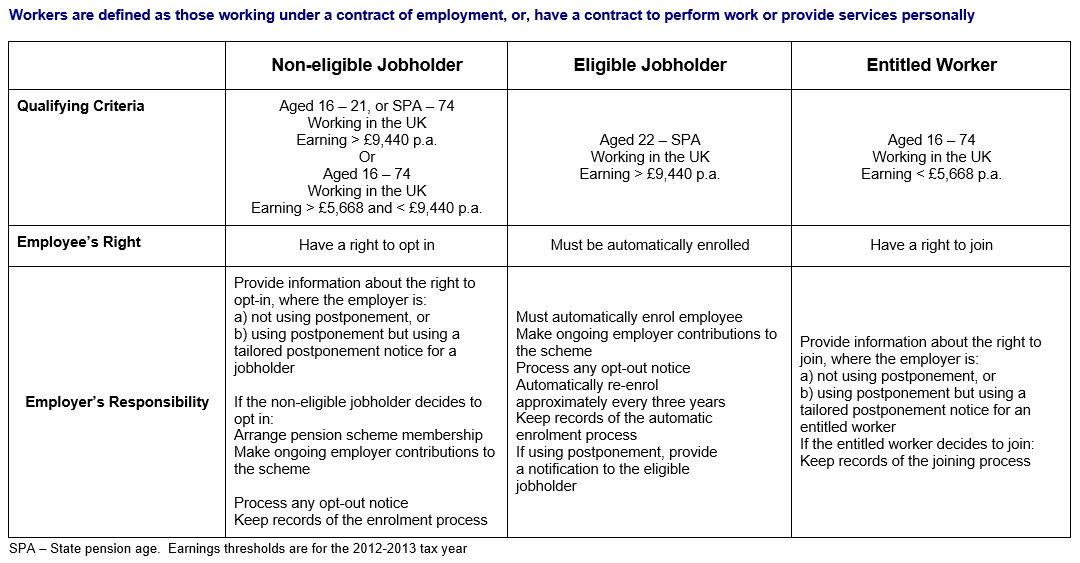
The assessment of your workforce is based on their age, work location and earnings, CleanLink assesses the workforce using historic pay for a closed pay cycle.
The following table summarises the criteria for determining the status of a worker:
To assess your workforce for auto-enrolment eligibility, go to Setups > R. PAYE, NI & Staff Setups > H. Pension Schemes.
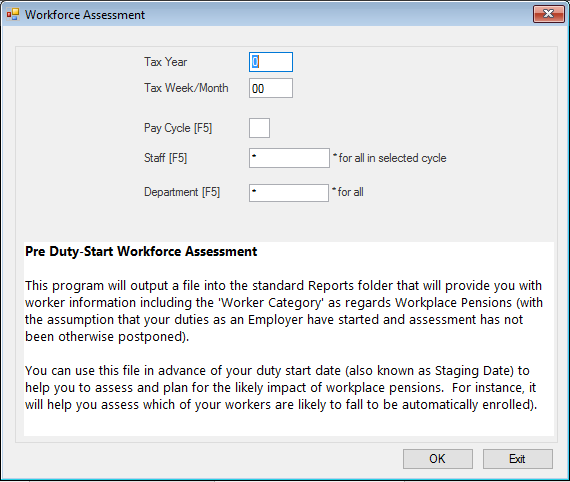
Select the Tax Year and Tax Week/Month, then select the Pay Cycle. When using, ideally the last closed period should be selected. (Note this is the first tax week for weekly cycles or the tax month for monthly cycles).The report will create a CSV file, which can be viewed using your default program (usually MS Excel).
You can use this report to see which of your staff are non-eligible, eligible or entitled to join your Workplace Pension Scheme.
Adding a Pension Company & Scheme
To add a Pension Company, go to Setups> 18. PAYE, NI & Staff Setups> Pension Schemes
Select the Add button to create a new Pension Company.
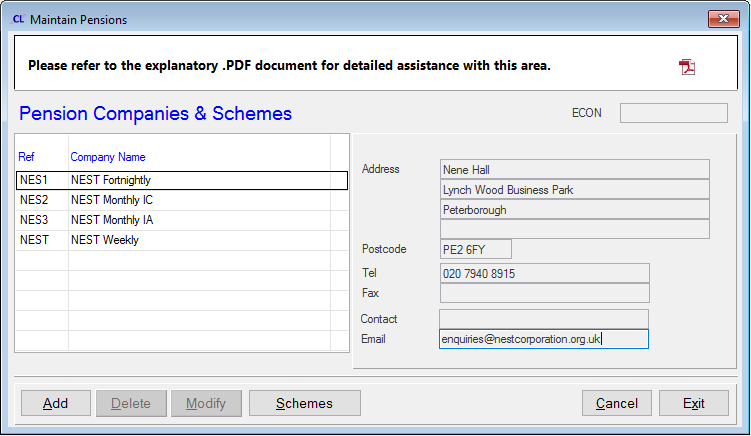
Tip
If you have more than 1 payroll cycle with different payment frequencies, you may need to create a pension ‘Company’ for each. Our example has 4 ‘Companies’ to represent 4 cycles - Weekly, Fortnightly and Monthly(all paid in arrears) and Monthly(paid within cycle.) This is particularly important or handling postponement because you will later need to match the postponement period to fall within the correct earnings period.
Next, add a Pension Scheme by selecting the Pension Company and then pressing the Schemes button.
If you have any existing schemes, these will be shown in the table.
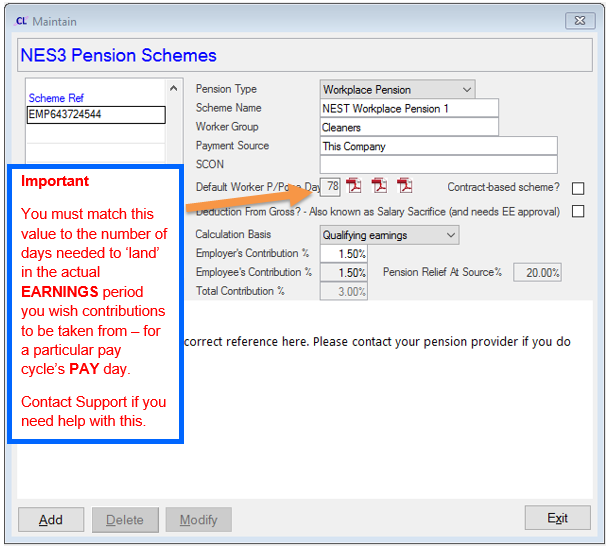
In our example, we have different postponement days set to match each pay cycle to its earnings period:
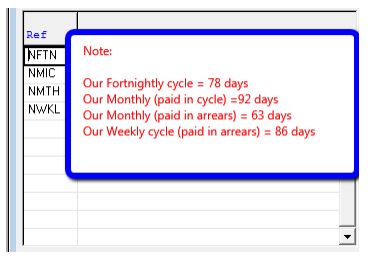
Please note, that each of these postponement values has been chosen to give the maximum postponement period available of 3 calendar months but with reference to each cycles particular payment (and pay day) arrangements.
You must choose the appropriate postponement value(s) that will suit your particular payment arrangements for each of your cycles.
Please Note: It is also imperative that you review each existing pension scheme and ensure that you specify whether or not it is deemed to be a 'qualifying scheme'. Any employee that is already a member of a qualifying scheme will not be auto-enrolled into a WP.
To add a new scheme, select the Add button and enter the following:
Scheme Ref: For NEST schemes, the scheme reference is 12 characters starting with EMP. Schemes from The People’s Pension have 5 characters.
Pension Type: Choose Workplace Pension from the drop-down list
Scheme Name: Add a reference name
Worker Group: Enter the Group name that you have specified to your pension provider for the group of workers within this scheme.
Payment Source: This is where you can link the pension scheme in CleanLink Site Manager to the ‘Payment Source’ you have agreed with your pension provider.
Default Worker P/Pone Days: CleanLink uses the value entered here to delay assessment for auto-enrolment into a future earnings period. You need to choose a value that will ‘push’ forwards to the earnings period that you want contributions to be taken from (allowing for the actual day that you pay your workers into their accounts). Note, it is the FIRST pay day after a period of postponement that contributions must be taken from (and for cycles paid in arrears, this will often be the period BEFORE the one in which the pay day falls. This is why it is common in CleanLink to have 63 days specified for a Monthly cycle paid in arrears (calculated as 31+31+1).
Workers who are subject to a postponement period are excluded from automatic enrolment for the duration of the postponement period, even if all other necessary conditions for automatic enrolment are met. Enter a figure here for the maximum number of days (up to three calendar months) that you wish to postpone workers in this scheme for.
Please note also that if an employer wishes to use the worker postponement period, they are required to provide the worker with an individual notice explaining this to them within a specified deadline. Please consult with your pension provider(s) to clarify their particular rules in relation to this, because many of them impose rules in addition to an employer's minimum statutory obligations.
Contract-based Scheme: Tick this scheme only if you are using a contract-based workplace pension scheme (also known as a ‘personal pension scheme’) for automatic enrolment, as there are modified requirements in respect of information and the automatic enrolment process and the time limits for paying over contributions. Do NOT tick this if you are using NEST or The People's Pension as your workplace pension scheme provider.
Calculation Basis: CleanLink offers two methods of determining earnings in relation to workplace pensions contributions:
1.Band Earnings. This is based on the earnings between the lower threshold and the gross pay/upper threshold.
2. NIable Gross Pay. This is based on % of the employee’s pay that is subject to NI.
Band Earnings will minimise the Employer's contributions, as it uses only the Qualifying Earnings value as the basis of its calculation, rather than the total of all NIable earnings. CleanLink calculates Qualifying Earnings as the lower of:
[Total NI'able earnings in the PRP less the relevant Lower Threshold] OR [Upper Threshold minus the Lower Threshold]
Different threshold values will be applied based on the payroll frequency.
Enter the respective Employer’s Contribution and the Employee’s Contribution percentages. These must equal or exceed the minimum values.
Select the Exit button to save.
Setting Workplace Pension Parameters
Most of this data is set up in the application by CleanLink. However, you will need to enter your Company’s Staging Date and select the default qualifying Pension Scheme that will be used for auto-enrolment.
To do this, go to Setups> 18. PAYE, NI & Staff Setups> Workplace Pension Parameters
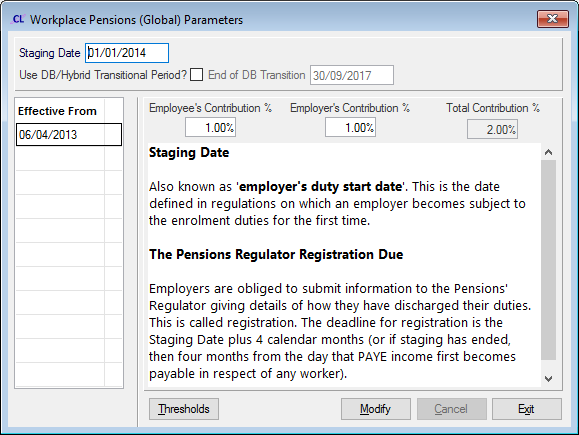
Enter the Staging Date for your company.
Only tick the ‘Use DB/Hybrid Transitional Period‘ check box, if you already have an Occupational Defined-Benefit or Hybrid pension scheme and want to invoke the ability to delay auto-enrolment using a transitional period. Enter the end date of the Transitional Period.
Enter the default Employee’s Contribution and Employer’s Contribution percentages, if these exceed the minimum values shown.
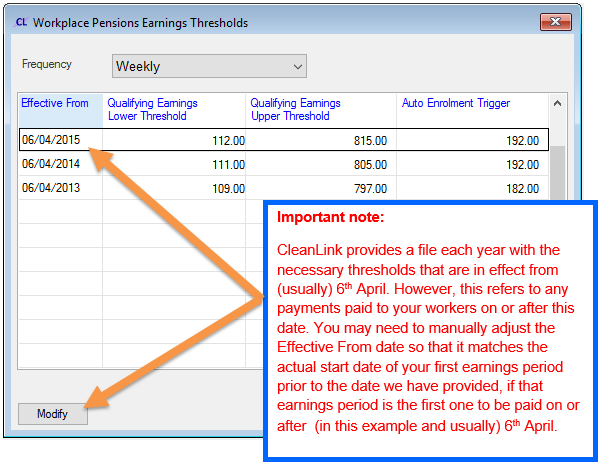
Select the Thresholds button to view the Qualifying Earnings Lower and Upper thresholds and the Auto-enrolment pay trigger limit. These can be viewed for various frequencies, such as Annual, Monthly, weekly etc.
These values will be updated by CleanLink in line with future regulatory requirements, but can be manually overridden.
Setting Per Cycle Defaults
CleanLink Site Manager needs to know (for each payroll cycle) – what Workplace Pension scheme applies to workers by default. This will be the scheme used for any worker in the specified Cycle who is not already in a Qualifying Pension scheme.
To set default values on a per cycle basis, go to Setups> 11. Payroll Cycles
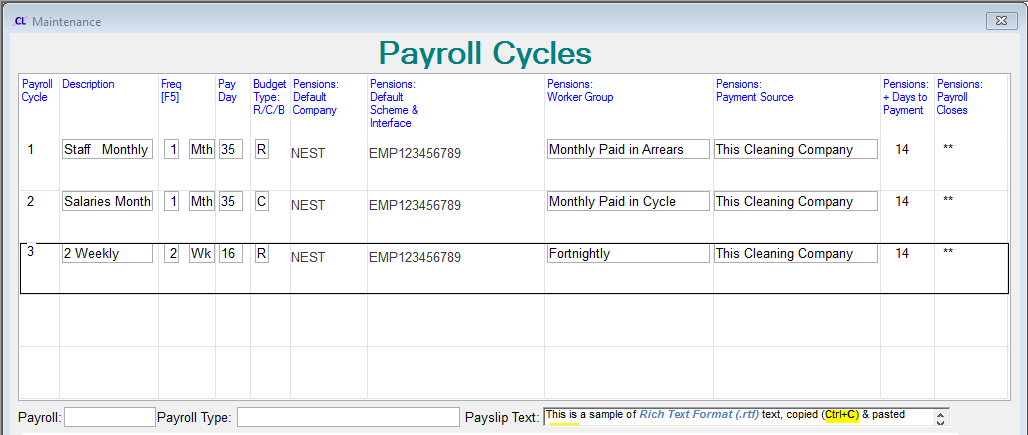
For both NEST & The People’s Pension, you can specify here, what the Worker Group and Payment Source will be for a given cycle. Note, any values here will be over-ridden if they are defined also at an individual Pension Scheme level.
For Creative Auto Enrolment you can specify a Payroll & Payroll Type.
As part of the Payroll calculation process, all staff are assessed for their current eligibility for a workplace pension.
If an employee becomes an eligible worker within that pay cycle, they will be automatically added to the default Workplace Pension Scheme that you have set up. Therefore, there is no need to manually add staff to a workplace pension scheme, and generally no user action is required within staff maintenance.
If you already have existing pension schemes in use, these will be converted to when updating the CleanLink program.
Run your pay cycle as normal. The pension contribution amounts are then calculated.
Note: The following Workplace Pensions fields will be updated from the staff record each time a calculation is run.
Therefore any changes that have occurred after a calculation has been run can be picked up, simply by running the calculation again; saving any manual modification of these fields in the Pension's tab.
•Date Of Birth
•Employment Start Date/ TUPE Date
•Gender
•Employment End Date
Tip
It is very important to have the correct Pension Scheme & Postponement values established BEFORE any calculation is ran following your staging date. This is because CleanLink Site Manager will ‘stamp’ the Default Scheme values onto every calculated worker from that point onwards and these values will remain with each worker into the future unless changed at an individual worker level. Changes to Pension Scheme Postponement values will only affect new workers who have never been calculated before.
Exporting Workplace Pensions Data
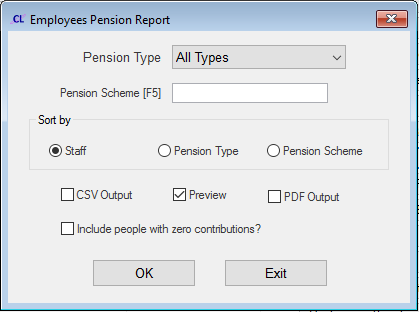
Once you have completed a Payroll calculation, you can export and view the Workplace Pensions interface files for schemes from NEST, The People’s Pensions and NOW:Pensions.
Please note that if any amendments are subsequently made that result in a re-calculation, this may change the status of employees.
To export the Workplace Pensions interface files, go to Pay and select the current or a closed Pay Cycle and select 8. Reports> 10. Workplace Pensions Exports.
Choose a file from the list, the dates will automatically populate from the period data within the cycle. However, the dates of the periods in CleanLink Site Manager may not align precisely with those expected by the pension company. If you need to, you can amend the dates that are output in the extract file by changing them here to match precisely those expected by the pension company. Now select OK. A CSV file will be created in your \CleanLink\Reports folder.
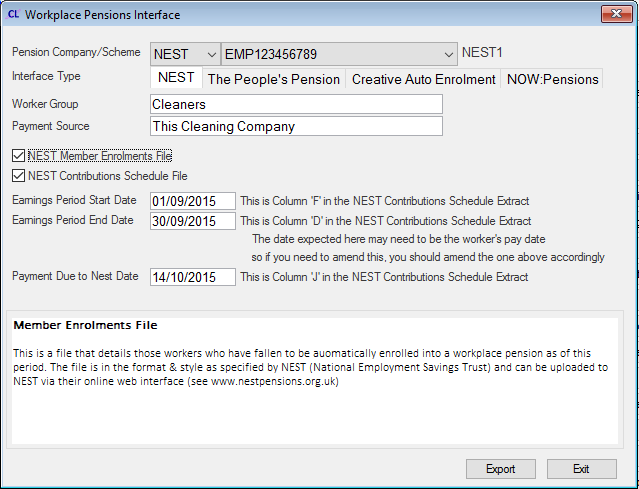
Select 10. Workplace Pensions Reports to create a report listing staff who’s ‘Worker Status’ has changed within the current period.
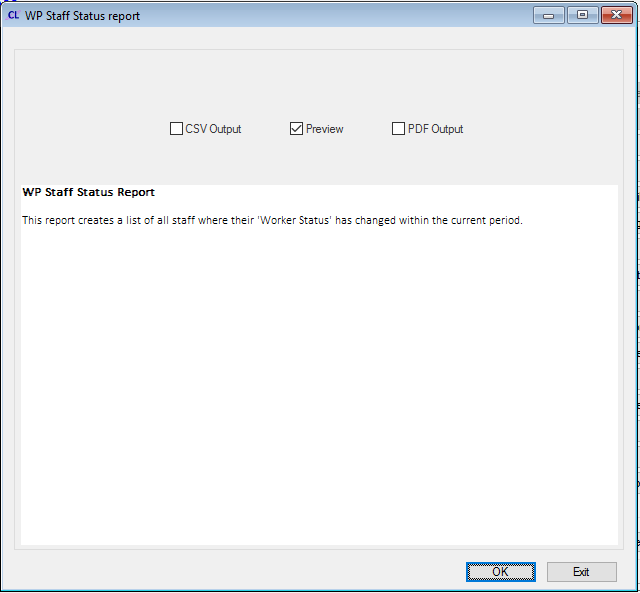
Select I. Pension Report to create a report of pension contributions for a specific or all pension schemes.
Reviewing and Amending Staff Pension Details
Adding Staff to a Pension Scheme
It is not usually necessary to manually add workers to a Workplace Pension scheme because this functionality will happen automatically as part of each calculation. If you need to manually add a worker to a scheme (Workplace or otherwise) you can do so.
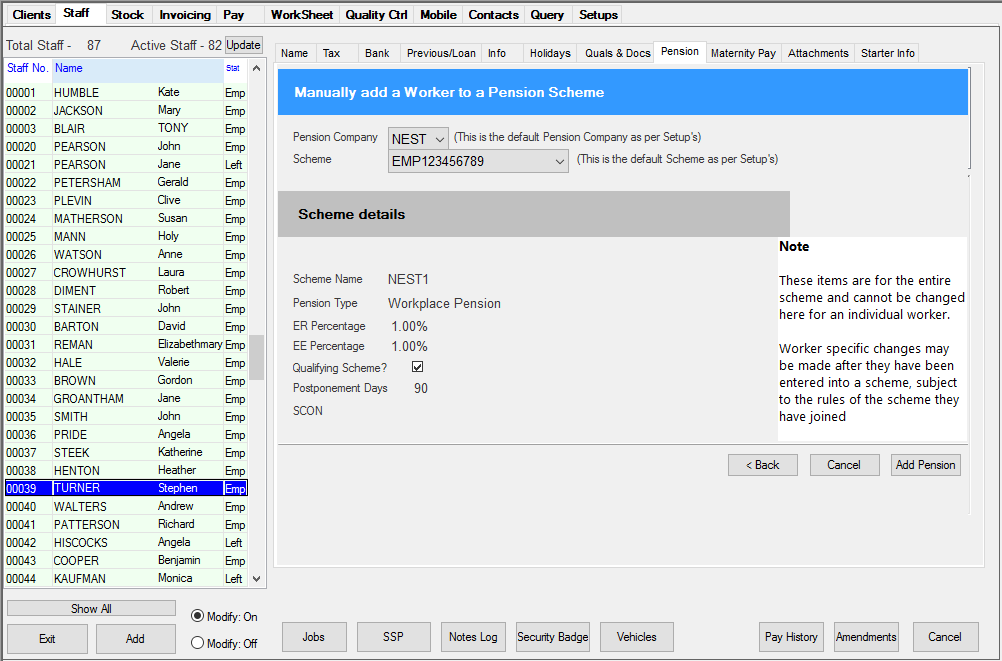
If there are no pension details previously created for a worker, then when selecting the 'Staff > Pension' tab, you have the option to 'Manually Add a Worker to a Pension Scheme'. Select the 'Pension Company' and 'Scheme' from the drop down boxes. Now press the 'Add Pension' button and then you are asked to confirm this action, once this has been confirmed the pension scheme is saved. Selecting the 'Cancel' button will not create any records.
If records exist, the details of the last assessed period are displayed. The default view is the 'Data' screen, as shown below. This displays a list of all available fields associated with the Workplace Pensions functionality that are required by law to be kept by the Employer. Ticking the 'Advanced' box allows a more detailed view to be shown. You can also view any relevant data for other pension schemes that the staff member has joined.
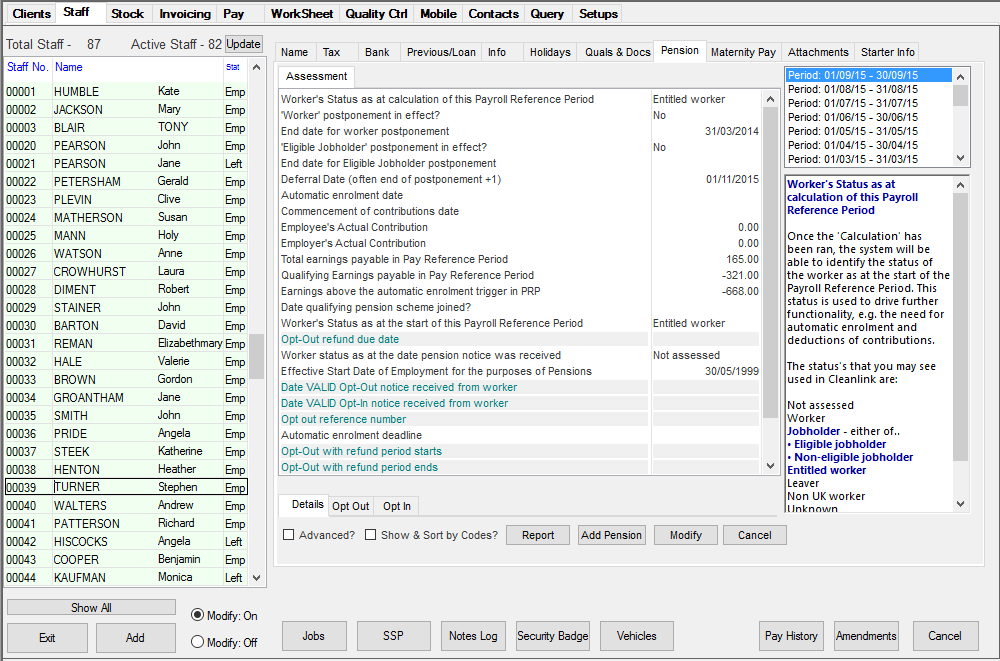
When selecting any field from the list, accompanying text providing background information will be shown on the right hand side of the screen. The values held for any field shown with teal-coloured text may be manually altered.
All other fields are auto-populated by the CleanLink programme in line with the data and parameters provided in the set up process.
Processing a Request for Staff Opting Out of a Workplace Pension Scheme
If a member of Staff has been auto-enrolled on to a Workplace Pension scheme and has written to request that they be removed from the scheme, you can remove them from the scheme as follows:
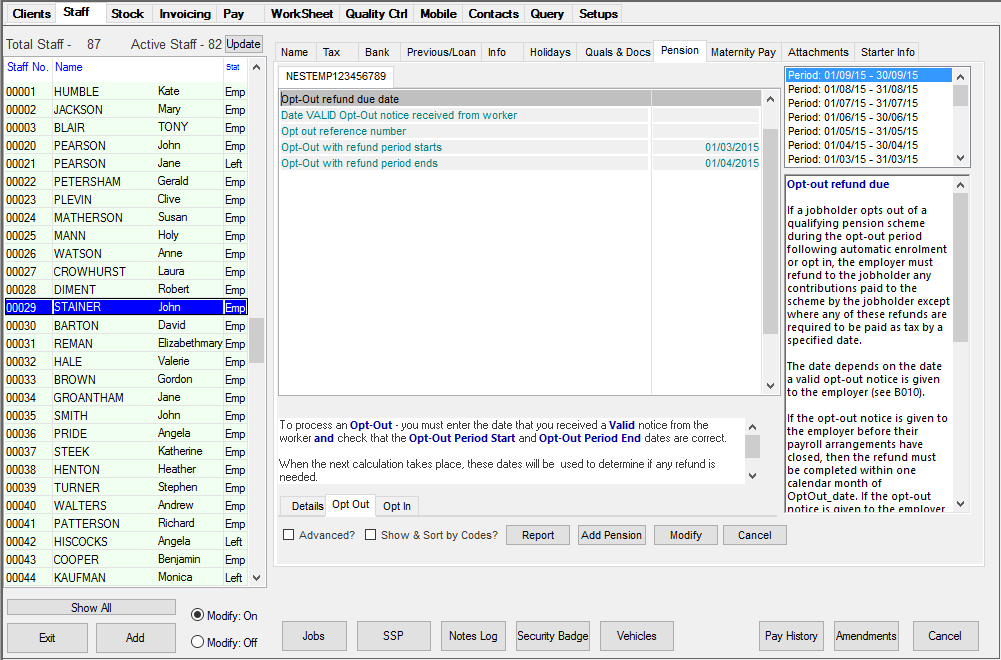
Go to the 'Staff' tab and select the 'Pension' tab. Select the 'Opt Out' tab at the bottom. Update the following fields with the relevant information:
1. Date that a VALID opt-out notice was received from the worker.
2. Date the Opt Out period starts.
3. Date the Opt Out period ends.
These dates can be amended as necessary.
When the next Pay cycle is run, no further contributions for this pension scheme will be made to the employee.
Providing the opt out request is received within the 30 day permitted time frame after notification, any deductions prior to this will be automatically refunded. If the opt out request is received after then no refunds are given.
Processing a Request for Staff Opting In to a Workplace Pension Scheme
If a Non-eligible Worker, or an Entitled Worker has written to request to join a Workplace Pension scheme, you can add them to your Workplace Pension scheme as follows:
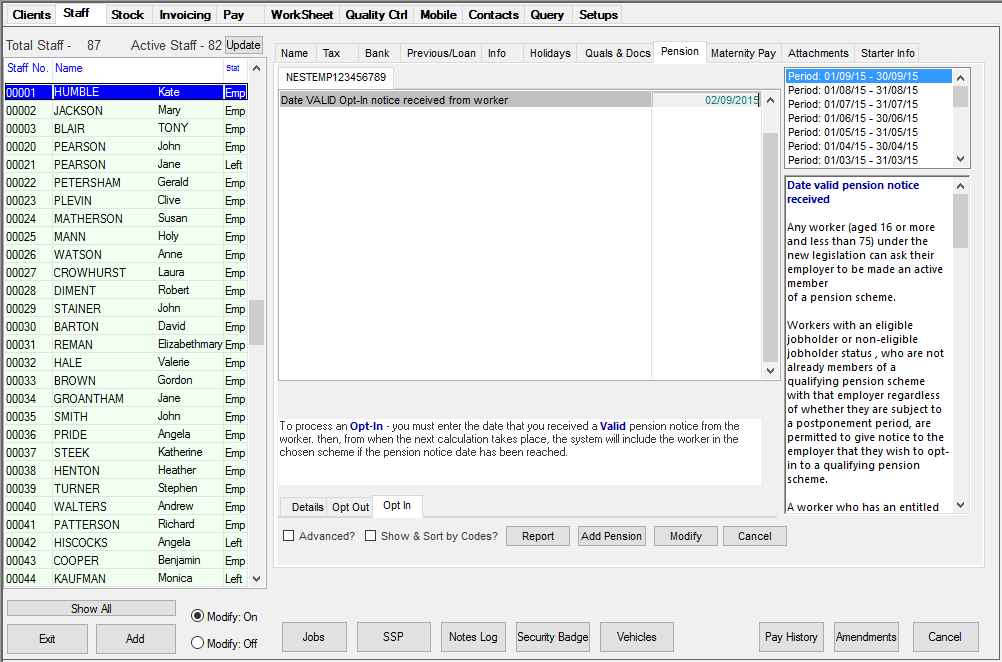
Go to the 'Staff' tab and select the 'Pension' tab. Select the 'Opt In' tab at the bottom. Update the following fields with the relevant information:
1. Date a valid Opt-In pension notice was received from the worker
If the Payroll Cycle is considered open for pensions purposes when the Opt-In is entered, contributions for this pension scheme will be calculated for the employee in the next cycle.
If the Payroll Cycle is not considered open for pensions purposes when the Opt-In is entered, contributions for this pension scheme will be calculated for the employee in the cycle following the next.
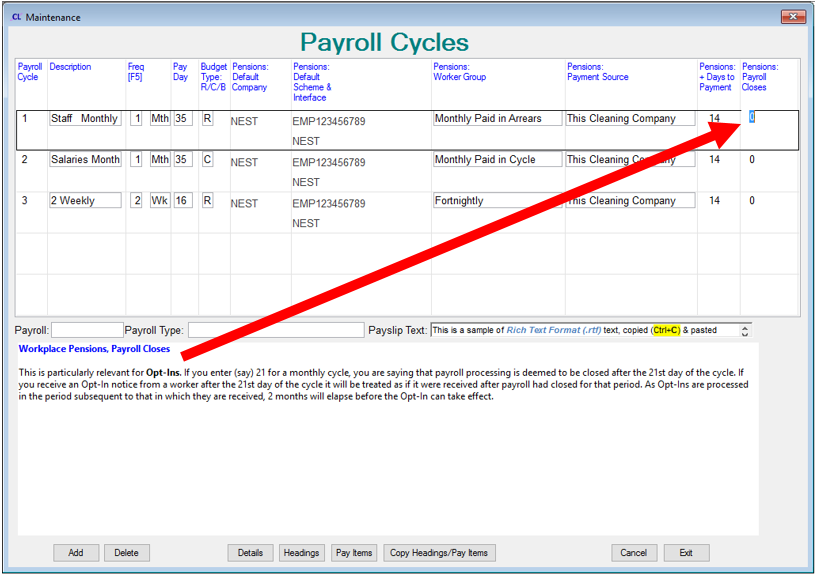
This is controlled by the settings in Setups > Payroll Cycles under Pensions: Payroll Closes.
Depending on the scheme contribution type (% of Band earnings or % of NIable gross) in use, it may be necessary to set up voluntary contributions. For example if the member of staff is an entitled worker, but the scheme is set to % of Band Earnings, they will have no earnings in the band therefore no deductions will be made. In this case you would need to set up a voluntary contribution once the Opt-in has been processed by Site Manager and a pension record has been created - see Voluntary Contributions section next.
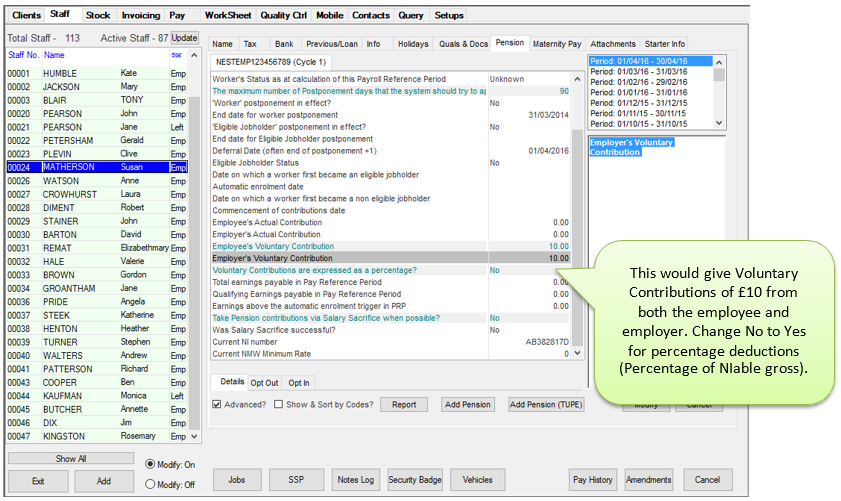
Should you or your staff want to make contributions over and above the minimum requirements for the scheme, the best way to deduct these is via voluntary contributions. To add these, go to the 'Staff' tab and select the 'Pensions' tab and tick the 'Advanced' box at the bottom. Now amend the 'Employee's Voluntary Contribution' and 'Employer's Voluntary Contribution' fields. Note - If these are set to be a percentage then this is based on the gross pay subject to NI.
For staff opting in to a Workplace Pension Scheme, voluntary contributions can only be set up once the Opt-in has been processed by Site Manager and a pension record has been created.
Directors and Workplace Pensions
By default, all employees including Directors will be subject to automatic enrollment in Workplace Pension Schemes where these are set up. If a Director does not have a contract of employment they are not considered to be a Worker for the purposes of Workplace Pensions and therefore do not need to be enrolled as such, please see http://www.thepensionsregulator.gov.uk/director-exemptions-from-automatic-enrolment.aspx#s23692 for a link to the Pension Regulator for further details.
You can mark a Director as not having a contract of employment by going to Staff > Maintain Staff > Pension and following the instructions below.
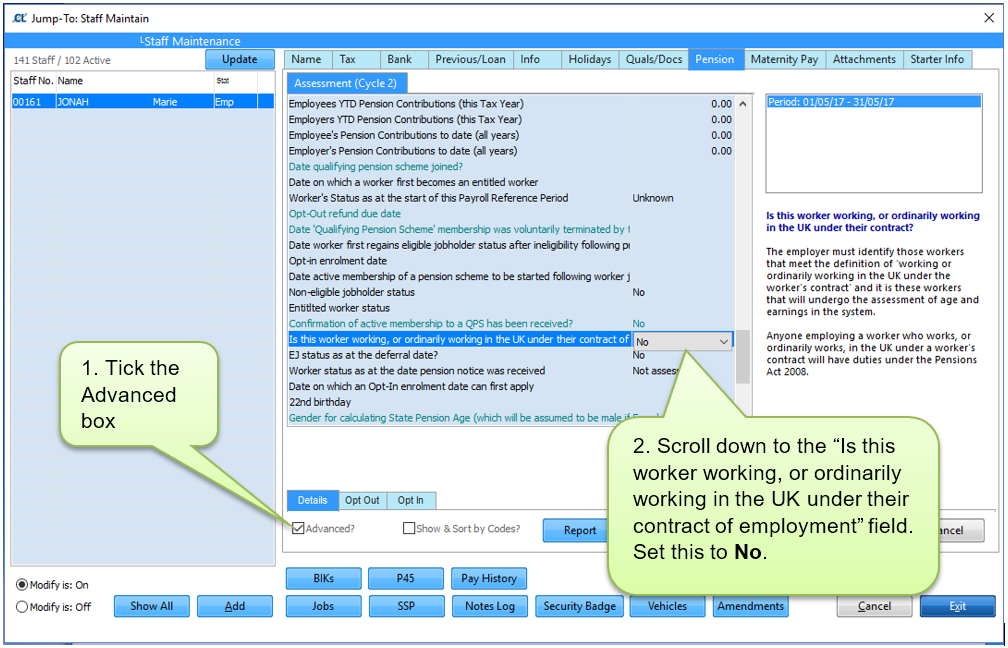
The Director will now not be subject to auto-enrollment to a Workplace Pension.