One Off Invoices |
  
|
One Off Invoices |
|
Workflow
Creating a One Off Invoice/Credit
If you are not ordering stock through the ‘Stock issue’ button the following process can be used to produce a one off invoice for both stock and service items. It is worth noting that using the following process will not produce a delivery note. If you require a delivery note go to ‘Issue Stock’
Go to the ‘Invoicing’ tab, select ‘B. One Off Invoices/Credits’


‘Work Sheet’ - If a service line has been added, this button becomes available and allows you to maintain the worksheets that are attached to this site.
‘Split Cost’ - Choose to split the cost of a product/service between different cost analysis items.
‘Add Above’ - Use this button to add a line above the line currently highlighted.
‘Cancel’ - Allows you to cancel the action you are currently undertaking.
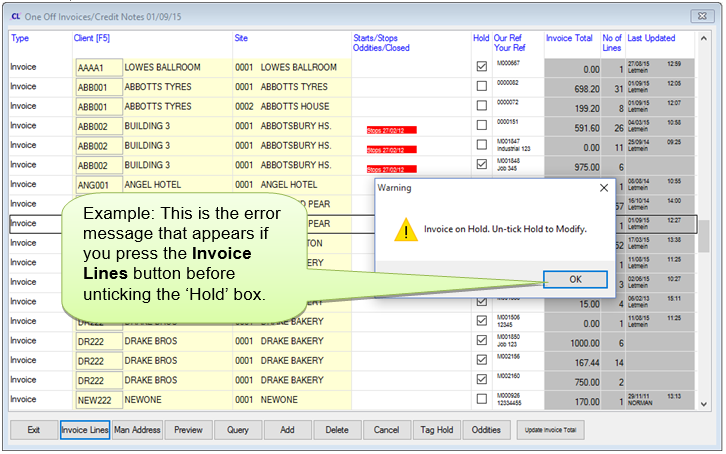
‘Man Address’ - This allows you enter a manual address which is different to the default address which is set up when creating the client.
‘Preview’ - You can preview the invoice that would be sent out by selecting your relevant client/site and pressing this button.
‘Query’ - Pressing this put the screen back into ‘Query’ mode so that adjustments cannot be done without pressing the ‘Modify’ button.
‘Add’ - Allows you to add another invoice to this cycle for a client/site.
‘Delete’ - Allows you to delete an invoice from this cycle.
‘Cancel’ - Allows you to cancel the action you are currently undertaking.
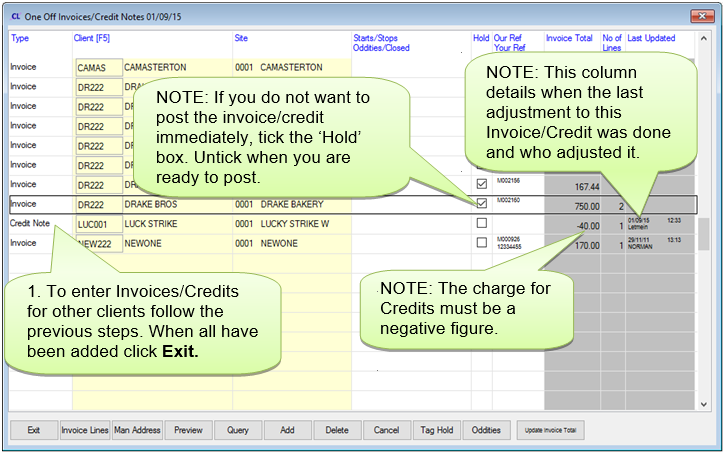
‘Tag Hold’ - This button changes the state of the hold flag on all Invoices/Credits
‘Oddities’ - Allows you to view the oddities that are connected to this invoicing cycle.
‘Update Invoice Total’ - This updates the invoice total and puts this screen back into ‘Query’ mode, to add, delete or transfer invoices, you will need to press ‘Modify’ to continue.
In the ‘Invoicing’ tab, select ‘C; Preview One Off Invs/Credits’
Select ‘Preview Invoices’, to select a specific client use the ‘F5’ button in the select clients field, to view all clients leave blank and select ‘Ok’. Now select the printer option you want to view the invoices in and select ‘Print’.
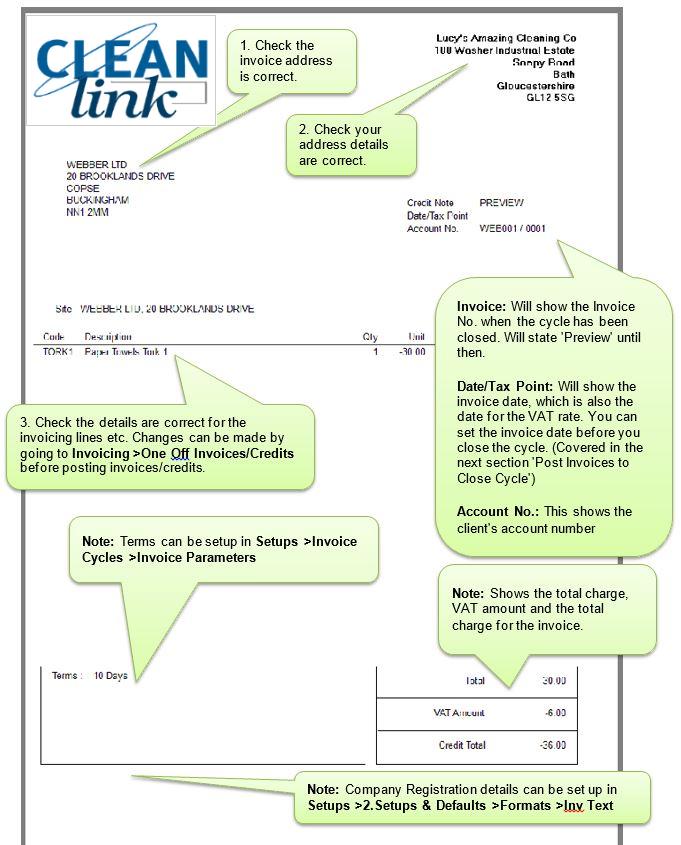
Example of One Off Invoice Preview:

Example of One Off Credit Preview:
Posting One Off Invoices/Credits
In the ‘Invoicing’ tab, select ‘D. Post One Off Invoices/Credits’, you will be asked if you would like to ‘Run Summary and Check for Errors?’, select ‘Yes’.
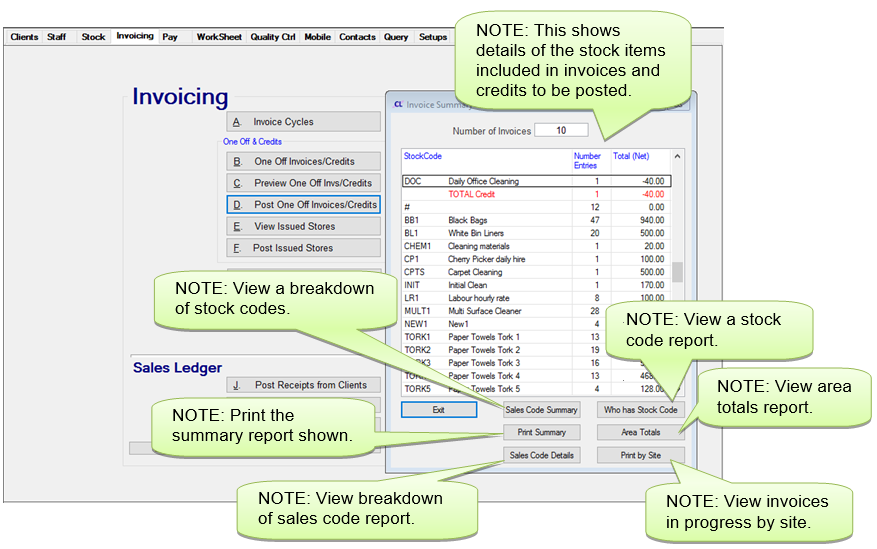
Press the ‘Exit’ button when you have finished viewing the summary report.
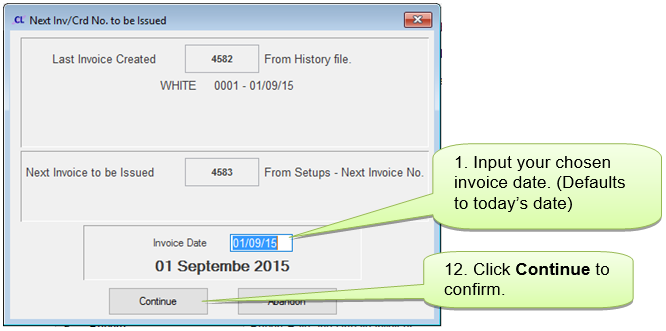
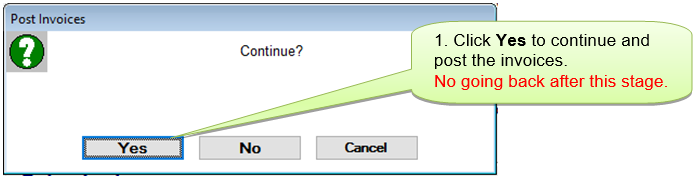
Press the ‘Exit’ button when you have finished viewing the summary report.
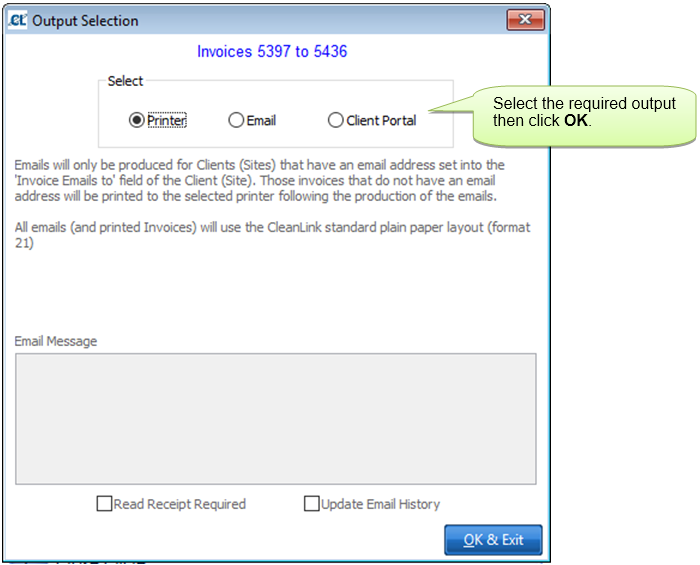
You will now be taken through to the screen to print the invoices. Once this has been done, these one off invoices have been posted.
If you have chosen to email invoices/credits to clients but would like a printed copy of the invoice/credit as well, follow the next section on ‘Batch Print/Email Invoices’
Batch Print/Email Invoices
In the ‘Invoicing’ tab, select ‘G. Batch Print/Email Invoices'

Press the ‘Print’ button which will bring up a preview and then you can print the invoices you have chosen.
