Ordering & Receiving Stock |
  
|
Ordering & Receiving Stock |
|
Purchasing Stock
If you have a depot(s) and hold stock, then you need to follow this process, if your suppliers deliver stock directly to your customer sites, then you do not need to follow this process (see Issuing Stock process).
Go to Stock> I. Create Purchase Orders For Stock and select the depot you want to purchase the stock for using F5 to bring up the list of depots (if you have more than one).

Clicking on the OK button will bring up the main stock list, from which you can select each item you want to purchase as below:

Clicking on the Order button will display the following screen where you may then enter the quantity of the item you require:

Continue to do this until you complete the order. You may view the order at any time during this process using the View/Print this Order button. Once completed use this button to print the order. At his point the order is given an order number. Should you wish to email the order, use the Order History button and find any previous order.
Receiving Stock
If you have a depot(s) and hold stock, then you need to follow this process, if you order stock which is issued directly to you customers from your suppliers, then you do not need to follow this process (see ‘Issuing Stock’ process).
Go to Stock > I. Receive Stock From Suppliers, which shows you the outstanding stock orders and find the order you are receiving into your depot from your supplier. You will notice that you can use the Receive Selected Item button to receive a single line of an order or the Receive Whole Order button.

Click on the Receive Selected Item button and you will get the screen below which allows you to receive part of the quantity of that item ordered or all of it.
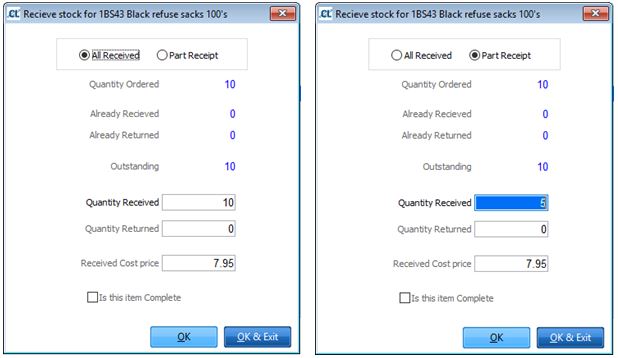
If a part receipt was made, as on the right above, then when the subsequent balance of the order arrives you would complete it as below, also ticking the Is this item complete flag. The order will then disappear from the Outstanding Order listing.
