Issuing Stock |
  
|
Issuing Stock |
|
Issuing Stock
There are three was of recording stock issues from within Cleanlink. This section covers Manually creating a Stock Issue and Import Issues from a Supplier, you may also want to look here for information on importing Stock Orders from Mobiles.
Go to Stock > A. Issue Stock to Sites, select your customer Client/Site that you want to send this order to, purchase order or ref if you have one and order date (defaults to today’s date). You then need to select whether this order is being issued from Internal Stock (your depot) or External Stock (direct from your supplier’s premises to your customer).

If this is an External issue you will see your default supplier in the Supplier field. This can be amended by pressing F5 and picking a supplier from your list (if you have more than one). Then click on the OK button and the main stock list appears.
If this is an Internal issue (from your store Depot) press F5 to select the depot you are issuing from (if you have more than one).
Click on the OK button and the screen below appears:

Select the first item and the screen below appears allowing you to change the quantity:
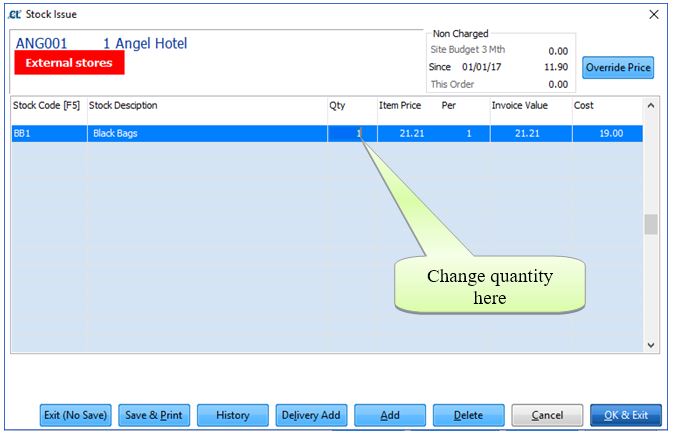
Click on the ‘Add’ button and continue selecting items until the order is complete. At this point you have three options ‘Exit (No Save)’, ‘Save & Print’ (save and print/email purchase order to your supplier) or ‘OK & Exit’ (save and come back later to print/email purchase order to your supplier). At this stage the lines on the order are displayed in black, once the order is printed/emailed, the lines will appear in burgundy (to remind you that you may need to reprint/email the order) or if the order has been invoiced, they will appear in red.

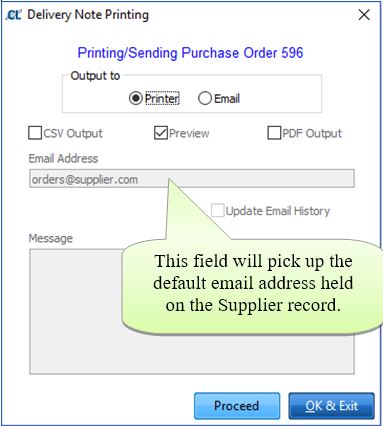
When saving and printing you get the option to enter a delivery date and print/email a delivery note or purchase order, depending on whether you deliver the order or your supplier will deliver it and complete the delivery note.
Importing Stock Issues From a Supplier
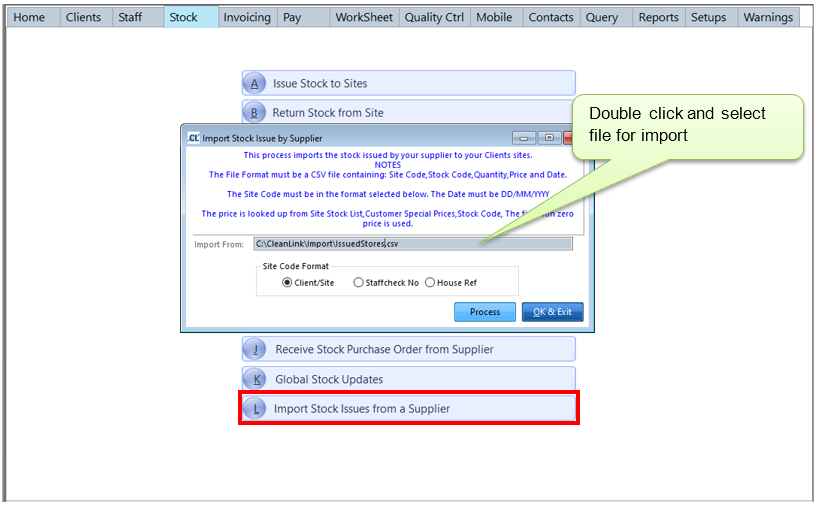
An alternative to creating stock issues in Site Manager is to import issues from a file created by your supplier. This can be done via Stock > L. Import Stock Issues from a Supplier. The file supplied must be a csv file containing the following information for each issue: Site Code, Stock Code, Quantity, Price, Date. You have three options for the format of the site code a) Client/Site, b) Staff Check Contract Number or c) House Ref, please see below for details on where these details are found. If using options b) or c) it is essential that you check that each site has a unique code set.
Once imported the items will be available for posting to invoices as per the setups for the relevant clients.