Sending CleanLink Data to your T & A System |
  
|
Sending CleanLink Data to your T & A System |
|
Once your chosen T & A System parameters have been set up, go to Pay > I. Time and Attendance Processing
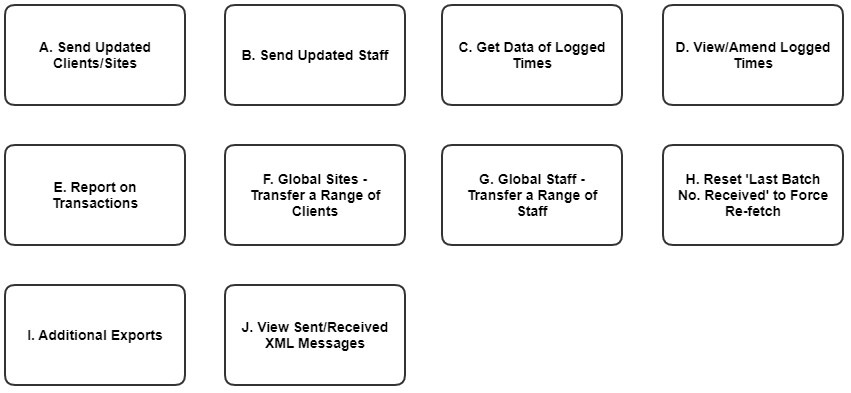
Selecting this option gives the following menu.
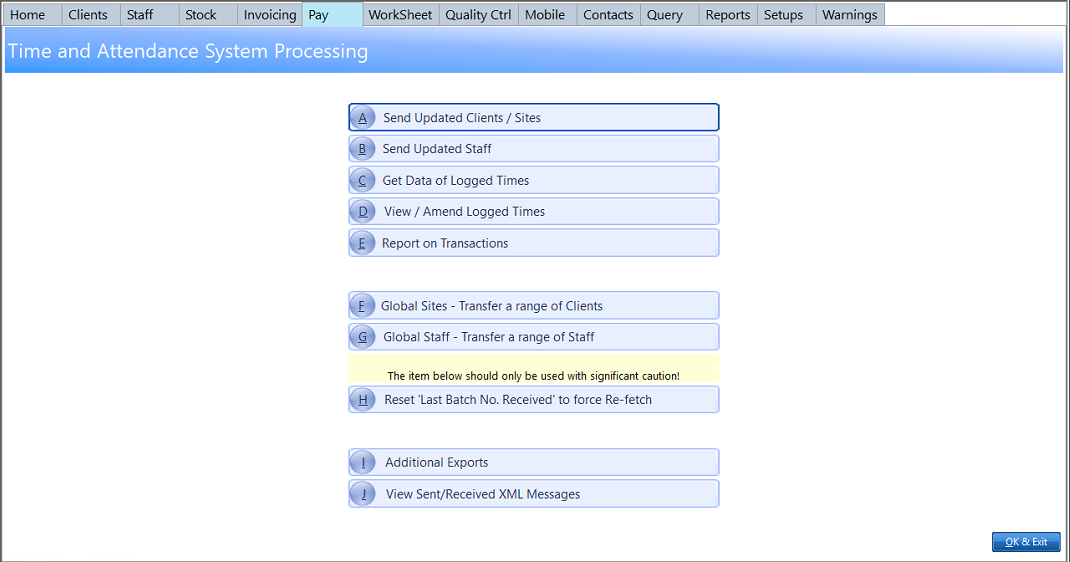
Site and Staff data can be exported to the chosen T & A System in order to populate the Time & Attendance Processing Interface prior to use:
Selecting this option displays the following. From this menu it is possible to modify any telephone numbers, to change the manager code or to delete any records you do not want sent to the chosen T & A System. Sites will be added to this list either after creating the site (if Yes or Ask are set as the Send Clients/Sites setting) or after making a change to the site details. Sites can also be added in bulk using the Global Sites Transfer option.
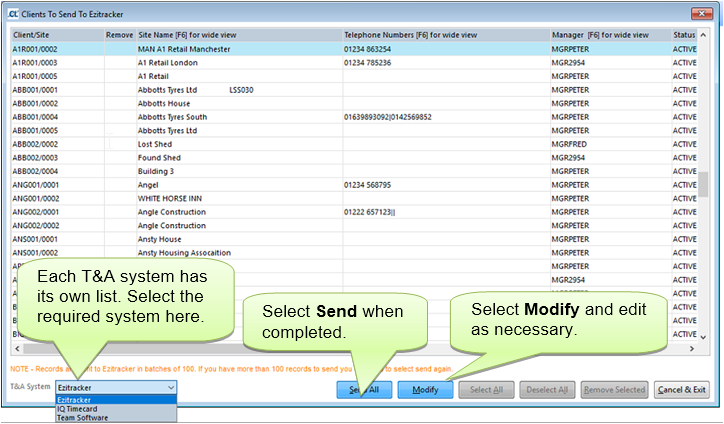
This may take some time and a ‘Please Wait’ processing message is displayed. Once the process has completed an ‘Update completed’ message will be issued.
NOTE - Time & Attendance Processing will only accept a fixed number of data records per transmission. Therefore we send a maximum of 100 sites per transfer. If you have more than this selected you will need to repeat the send option until the table is empty.
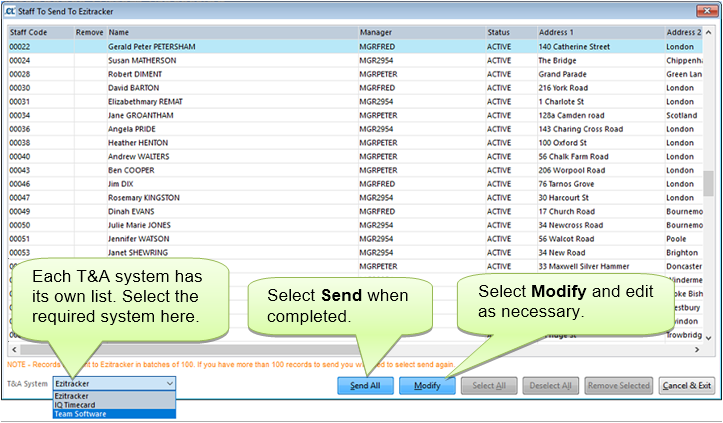
From this menu it is possible to modify the manager or delete any records you do not want sent to Time & Attendance Processing. Staff will be added to this list either after creating the site (if Yes or Ask are set as the Send Staff setting) or after making a change to the staff details. Sites can also be added in bulk using the Global Staff Transfer option.
Selecting this option displays the following.