Electronic Timesheets |
  
|
Electronic Timesheets |
|
CleanLink has the ability to export the staff Timesheet data directly from CleanLink into a custom Excel spreadsheets. These can be emailed to the relevant managers for review and amendment with information on the actual hours worked. The completed spreadsheets can then be emailed back to the Payroll manager for importing back into CleanLink as part of the payroll run.
These spreadsheets are only editable in certain areas, so as to prevent the amendment of pay rates, budgets and regular hours. A manager is only able to enter the hours worked per day, as well as holiday pay, sickness and notes fields with extra payment/deduction details or leaving dates. New starters can be added to blank lines for their first payment, but again, unless the record has been entered by the Payroll Manager, the site manager cannot activate payment, giving the payroll manager full control in a situation where the employee had not passed immigration criteria for example.
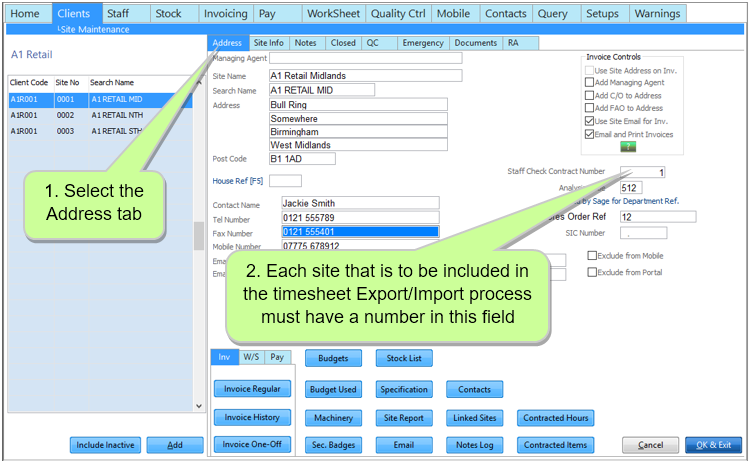
Setting up Folders for Electronic Paysheets
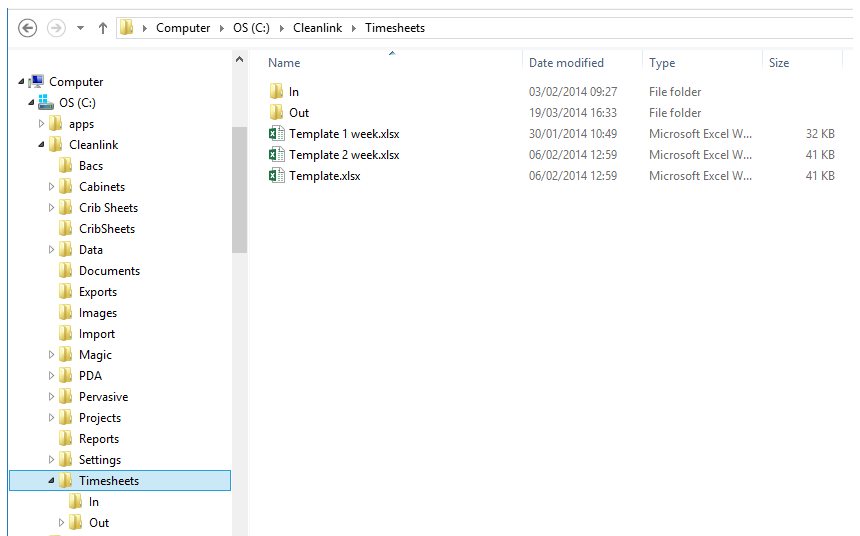
In order for the Timesheet Export process to work, a ‘Timesheets’ folder must be set up under the ‘CleanLink’ folder, with ‘In’ and ‘Out’ sub-folders beneath this. When you run the Paysheets export, additional sub folders beneath the ‘Out’ folder will be created automatically for each manager’s Division/Area record you have. The exported timesheets will be created in these folders, which facilitates easy attachment to emails sent to the respective managers.
To produce the timesheets, run the Paysheet report from Pay tab> B. Regular Pay Sheets as set up below:
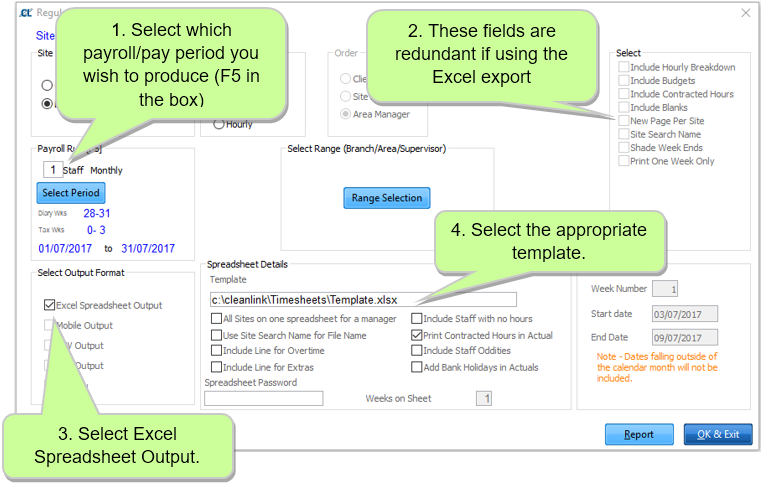
Spreadsheet Details:
All Sites on one spreadsheet for a manager – one spreadsheet will be produced per area. Each site has a separate page within the spreadsheet.

Use Site Search Name for File Name – uses the site search name for both the tab naming and the spreadsheet naming when sites have their own timesheet. To prevent duplicates file names the site number has been appended to the search name.
Include Line for Overtime – includes an overtime line in the spreadsheet. Ensure the template with overtime is used.
Include Line for Extras - includes an extras line in the spreadsheet. Ensure the template with extras is used.
Include Staff with no hours – includes staff who do not have regular hours but are listed against the site in Regular Pay (ie: cover cleaners).
Print Contacted Hours in Actual – prefills the Actual Hours with the employee’s regular hours (can be amended).
Include Staff Oddities – includes any Staff Oddities in the Comments box.
Spreadsheet Password – enables a password to be added for increased security.
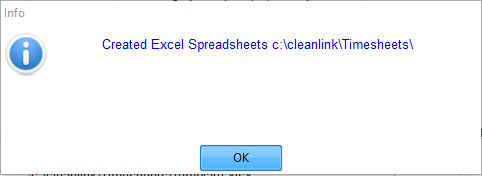
You will get a message similar to the one below quoting where the file(s) have been output to on your computer or network.
The Timesheet spreadsheets can be viewed by using Windows Explorer to navigate to the ‘CleanLink\Timesheets\Out’ folder and a particular manager’s Division/Area folder.
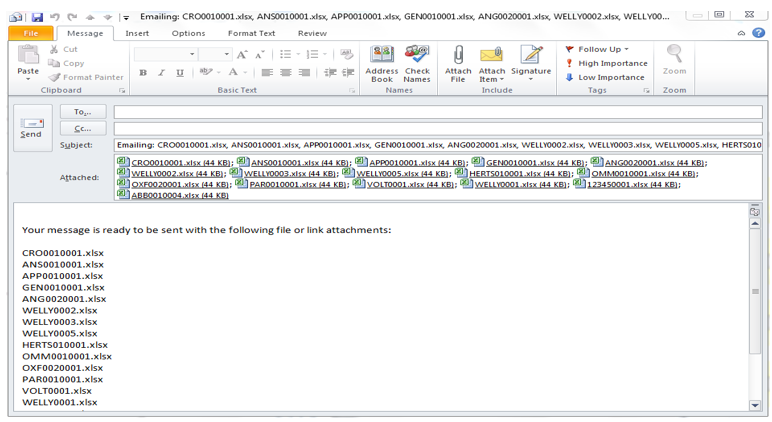
If you are using Microsoft Outlook, you can highlight timesheet files, then right-click and choose the ‘Send to’ option, then ‘Mail recipient’ option. An email box will appear as below and all you need to enter is your manager’s email address and send.
This section is a guide to what your managers will enter when filling in their timesheets and covers scenario’s such as absence, starters, leavers, comments and amendments.
Below is an example of a completed fortnightly timesheet:
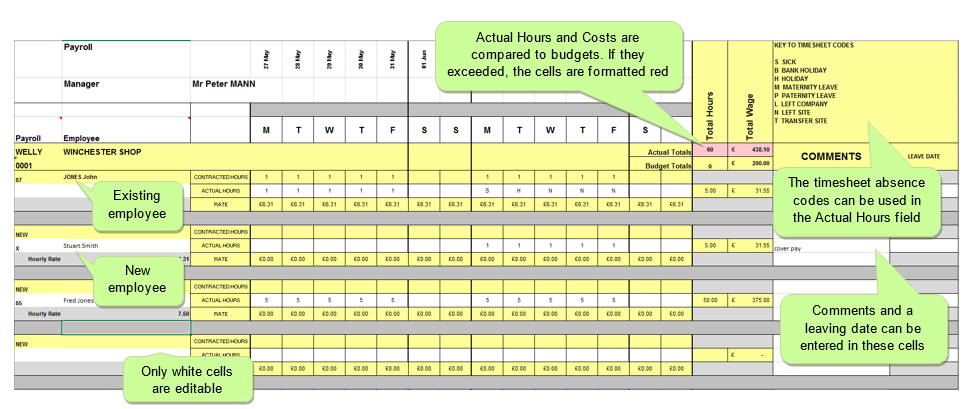
Things to remember when completing the timesheet:
When adding a new starter use an ‘X’ in the Payroll Number field.
Comments entered will appear in an import log for your reference when the timesheets are imported into the pay cycle.
Receiving Back Timesheets from Managers
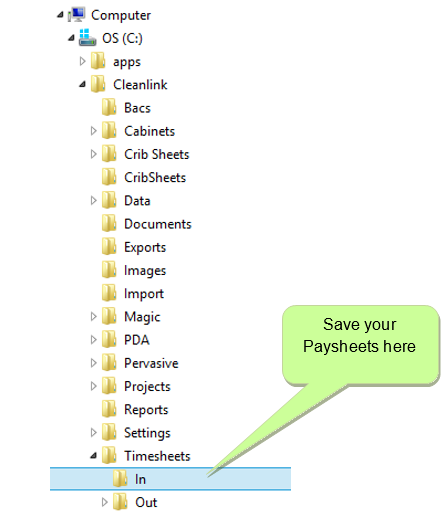
When Timesheet attachments are received by email from your managers, save them into the ‘CleanLink\Timesheets\In’ folder. From there you can import them into your pay cycle using the Timesheet Import process.
Saving Paysheets into a Folder
Once you've received the emailed paysheets from your managers, download the spreadsheet files and save into the \CleanLink\Timesheets\In Folder
Go to Pay > Pay Cycles> Choose your open Pay Cycle> 4. Timesheet Import
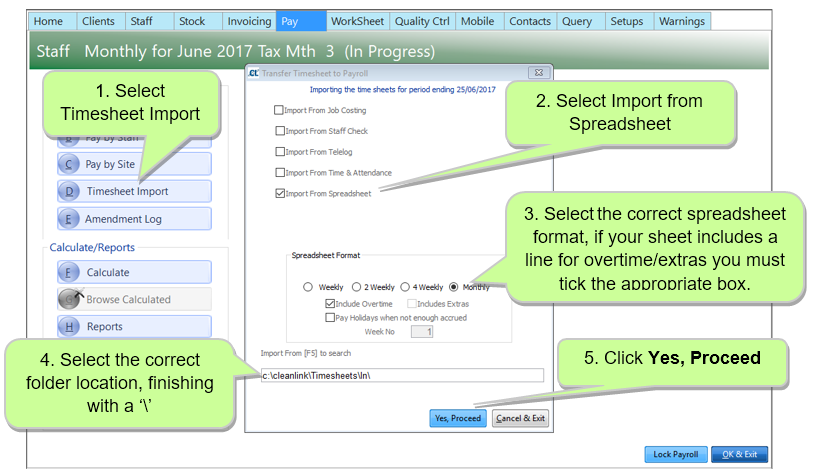
If there are any errors with the Timesheet Import they will be listed in the ‘In’ folder in the Pay_Import.txt document or Holiday.txt document. Please check this carefully and amend spreadsheets as necessary.
Please check the Pay_Import.txt and Holiday.txt error logs in the ‘In’ folder for errors which may require attention before processing, the Pay_Import.txt will contain any comments that were added to the timesheets. (See examples below).
Pay_Import.txt log:
Spreadsheet VOLT0001.xlsx
Book 1 of 1
VOLT 0001 86 BROWN Dan Tue 27/03/2012 Holiday not paid as Already paid for this day
VOLT 0001 86 BROWN Dan Wed 28/03/2012 Holiday not paid as Already paid for this day
Spreadsheet Count 0 Processed Count 1
000 Client/Site Not Found
000 Client/Site Not Found
0000 No staff Processed
Spreadsheet Count 0 Processed Count 0
Holiday.txt log
F1 Holdings Time Sheets Holiday Log Date: 14/03/2014
----------------------------------------------------------------------------------------------------
VOLT 0001 86 BROWN Dan Tue 27/03/2012 Paid Holiday 31.20 4.80 Hours
VOLT 0001 86 BROWN Dan Wed 28/03/2012 Holiday not paid as Current accrued reached
VOLT 0001 86 BROWN Dan Fri 30/03/2012 Absence Type S
WELLY 0001 87 JONES John Mon 26/03/2012 Absence Type S
WELLY 0001 87 JONES John Tue 27/03/2012 Holiday not paid as Current accrued reached
F1 Holdings Time Sheets Holiday Log Date: 14/03/2014
----------------------------------------------------------------------------------------------------
VOLT 0001 86 BROWN Dan Tue 27/03/2012 Holiday not paid as Already paid for this day
VOLT 0001 86 BROWN Dan Wed 28/03/2012 Holiday not paid as Already paid for this day
VOLT 0001 86 BROWN Dan Fri 30/03/2012 Absence Type S
WELLY 0001 87 JONES John Mon 26/03/2012 Absence Type S
WELLY 0001 87 JONES John Tue 27/03/2012 Holiday not paid as Already paid for this day
----------------------------------------------------------------------------------------------------
Report Completed
