Mobile Timesheets |
  
|
Mobile Timesheets |
|
Mobile Timesheets
CleanLink has the ability to export the staff Timesheet data directly from CleanLink into a custom Timesheet for completion on an Apple mobile device. These can be exported to the relevant managers for review and amendment with information on the actual hours worked. The completed timesheets can then be uploaded back to Cleanlink Site Manager for importing as part of the payroll run.
A manager is only able to enter the hours worked per day, as well as holiday pay, sickness and notes fields with extra payment/deduction details or leaving dates. Additional employees can be added to a site for that period if their details have been sent to the mobile device in question.
Mobile Timesheets Setup and Parameters
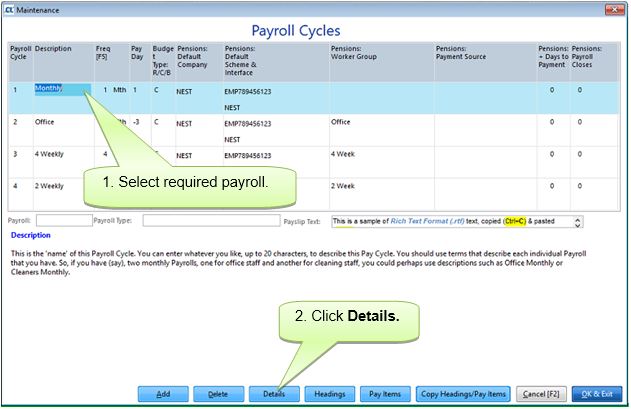
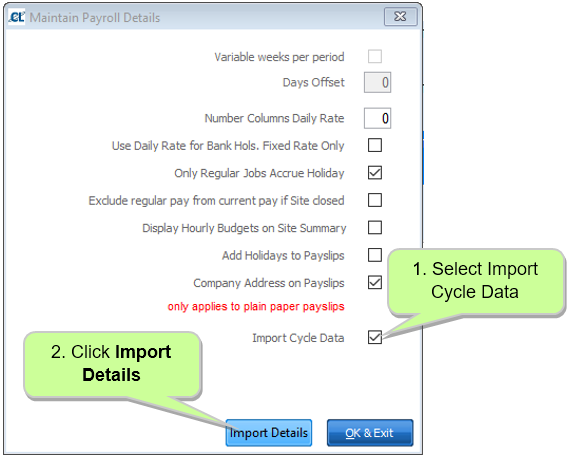
The interface for Mobile Timesheets is enabled via the Setups menu. Select Setups > 11. Payroll Cycles.
Minutes Short
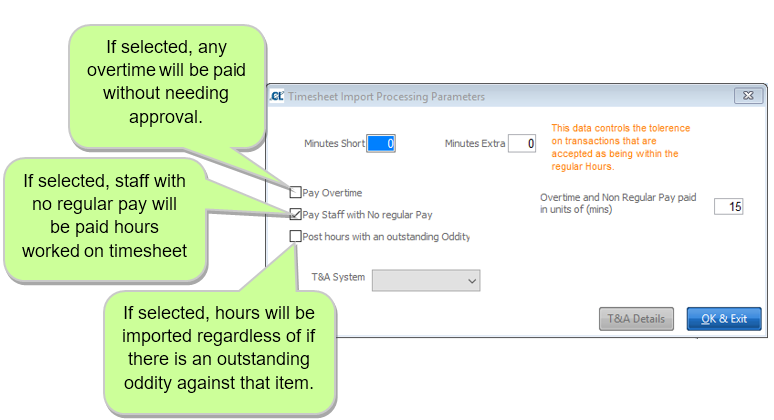
If this is set to zero then any staff working less than their contracted hours will only be paid for the time they work. For example if staff regular hours are 2 and their worked time is recorded at 1:58, they will be paid 1:58.
If this is set to a number then this is used as a tolerance. If the timed worked is within this tolerance, they are paid their regular hours. If it is outside, they are paid the timed worked.
For example, if this was set to 5 and the regular hours are 2, then if they worked between 1:55 and 1:59 they would be paid 2 hours, if they worked 1:54 or less they will be paid what they worked.
Minutes Extra
If this is set to zero and their recorded timed worked is more than their regular hours they will be flagged as an exemption and manual intervention will be required (subject to the setting of Pay overtime).
If this is set to a number then this is used as a tolerance. If the worked time is within this tolerance they will be paid their regular hours.
For example if the minutes extra are set to 25 and their regular hours are 2, then if their recorded hours worked is between 2:00 and 2:25 they will be paid 2 hours. If it is greater than this they will be flagged as an exemption and manual intervention will be required (subject to the setting of Pay overtime).
Overtime and Non Regular Pay
This is set in minutes and is used to round down the overtime pay and non regular payments. For instance, if this is set to 15 minutes then anyone working less than 15 minutes extra will not be paid overtime. Anyone working between 15 and 29 minutes will be paid 15 minutes overtime and so on. Because of rounding problems when working with minutes/decimal hours it is better to set this to a figure that is divisible by 60 to 2 decimal places. For instance 15 minutes would give 0.25 whereas 10 minutes would give 0.166666 which may result in rounding differences.
Pay Items
If the manager is to be able to add extra pay items to the paysheet then these items will need to be flagged for use on the mobile. This is done via Setups > 11. Payroll Cycles > Pay Items.
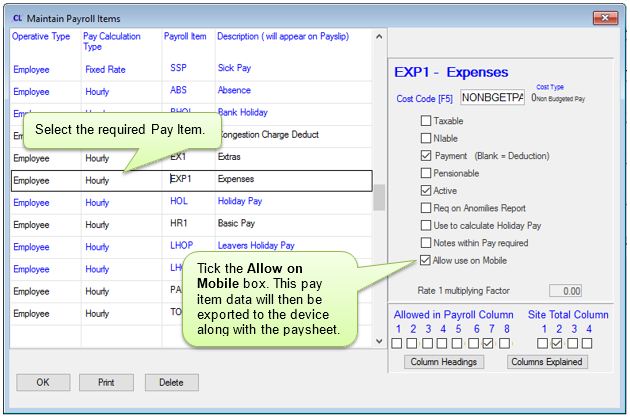
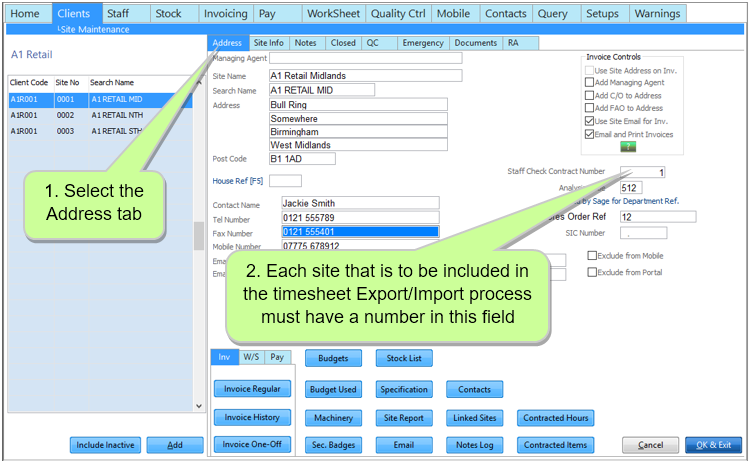
You will also need to flag which sites are to be included in the paysheet export/import process. This is done via the site record.
Exporting Timesheets to Mobiles
To produce the mobile timesheets, run the Paysheet report from Pay tab> B. Regular Pay Sheets as set up below:
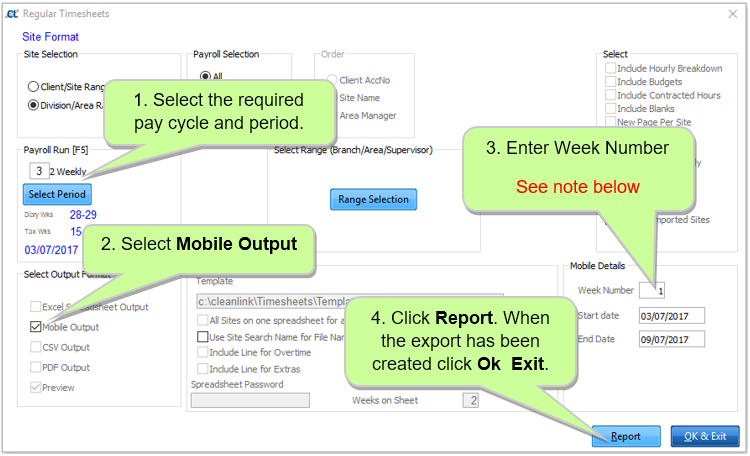
Note on Week Numbers: This process exports paysheets for one week (Mon - Sun) at a time. For Fortnightly and Four Weekly pay cycles the weeks are numbered 1-2 and 1-4 respectively and each week will need to be exported separately. For Calendar Monthly cycles Week 1 will be the week (Mon - Sun)containing the first day of the month and the week containing the last day will be week 5 (expect when the 1st February is a Monday in a non-leap year). In these weeks only the days included in the relevant calendar month will be included in the export.
Timesheets are sent back from the mobiles using the same system as audits etc. When the Mobile Received Data option is selected any timesheets will be processed into the timesheet interface. They will not appear in the received data view. To check for new data navigate to the Mobiles tab and follow the steps below.
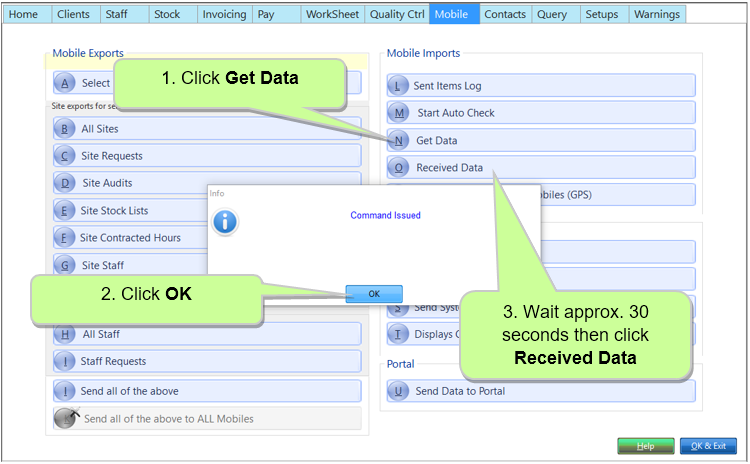
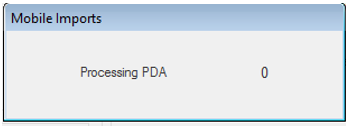
If there is new data received (not necessarily paysheet data) you will see the below message. This will process any timesheet data into the timesheet interface, the data will not appear in the received data view.
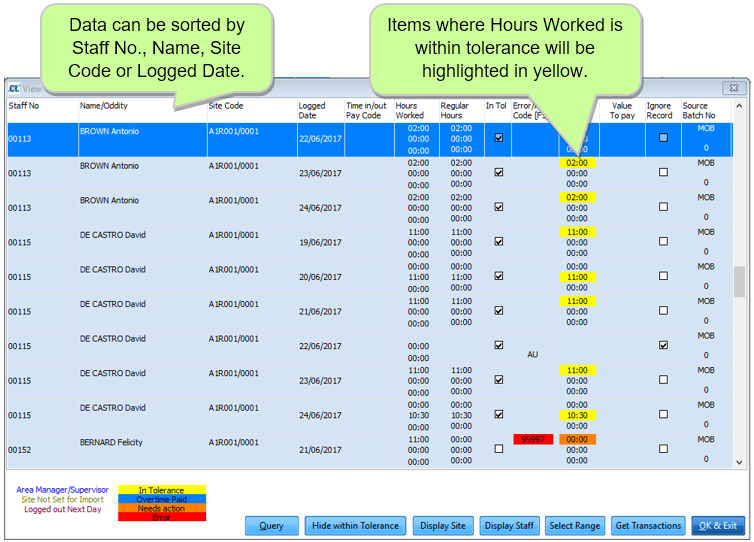
To view the imported timesheet data navigate to Pay > I. Timesheet Processing > D. View/Amend logged Times.
Examples

This employee has worked her regular hours at this site.

This employee has worked extra hours at the site. The way this is dealt with will depend on the Import Parameters.

This employee has an additional pay item. This will automatically assigned to the first day of the week. The amount can be amended if necessary.

This employee has had an absence entered on the mobile for the date in question. Their Holiday Record will be updated when this is imported to the cycle.

This employee was added to the timesheet on the mobile. In this example the parameters are set to not pay staff with no regular pay, therefore the hours to pay need to be entered manually in the green area.
Staff
On transferring from the mobile, the staff number is checked for validity against the current staff file.
If invalid an error 99999 is displayed. If valid and the staff member is a supervisor grade or above this is displayed in blue. It is possible to change the staff number using [F5] to select the correct staff record.
Name/Oddity
The name displayed is as entered on the device unless the staff has been changed using [F5] in which case it is the name as held on the Staff file. Beneath the name there is the option to add an ‘oddity’. On transferring from the device if the staff has any oddities set up on their regular pay these are copied into this field.
NOTE there is an option, controlled using the parameter as above, that while there is any data in the oddity field this record will not be processed into the payroll so it is necessary to delete the oddity line once they have been actioned.
Site Code
On transferring from the device the Site Code is checked for validity against the current Client/Site file. If invalid an error 99999 is displayed. It is possible to change the site code using [F5] to select the correct site.
Logged Date
This is the date the hours are logged against. This can be amended if it has been entered incorrectly on the device.
Time in/out Paycode
This displays the code for any additional pay items that have been entered against the employee. The date will default to the first day of the week.
Hours Worked
This is a reference only field and cannot be changed. It is the hours worked as returned by the device.
Regular Hours
These are reference only fields and cannot be changed. They are loaded at the time the data is verified and show the hours for each rate for each day as .
In Tolerance
This field is ticked if the hours worked are within the tolerances set up in the parameters.
Error/Action Code
This is the error code created by CleanLink. Pressing [F5] will give a detailed description of the error code.
Hours to Pay
The hours to pay are calculated using the hours worked, the rounding parameters and the regular hours. The calculated hours can be amended manually.
If hours worked are within the tolerances they are set to the regular hours.
If hours worked are under tolerance then the actual hours worked are added.. These hours are shown in Red.
If the hours are over tolerance and the ‘pay overtime’ setting is not set, the hours are left blank and the user will need to enter the hours they wish to pay their staff for this record.
If the hours are over tolerance and the ‘pay overtime’ setting is set, the worked hours are rounded to the nearest 30 minutes and allocated as per the regular pay, with overtime hours being added to the rate the hours where entered for on the device. These are displayed in Green.
Ignore this record
This flag can be ticked manually. If this flag is ticked, this record is ignored when importing the hours to the current pay and the data will be cleared from the processing screen.
Hide Within Tolerance
This button will hide all records that fall within the tolerances set in setups enabling you to focus only on records that need further attention.
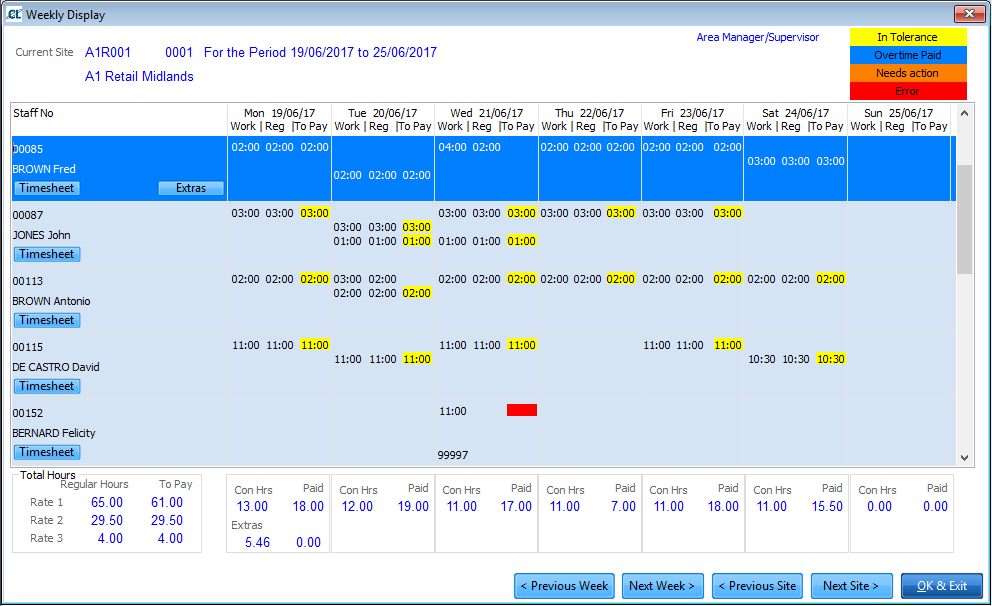
Display Site
This option displays all staff at the selected site for the selected week, amendments can be made in this screen to the highlighted Hours to Pay.
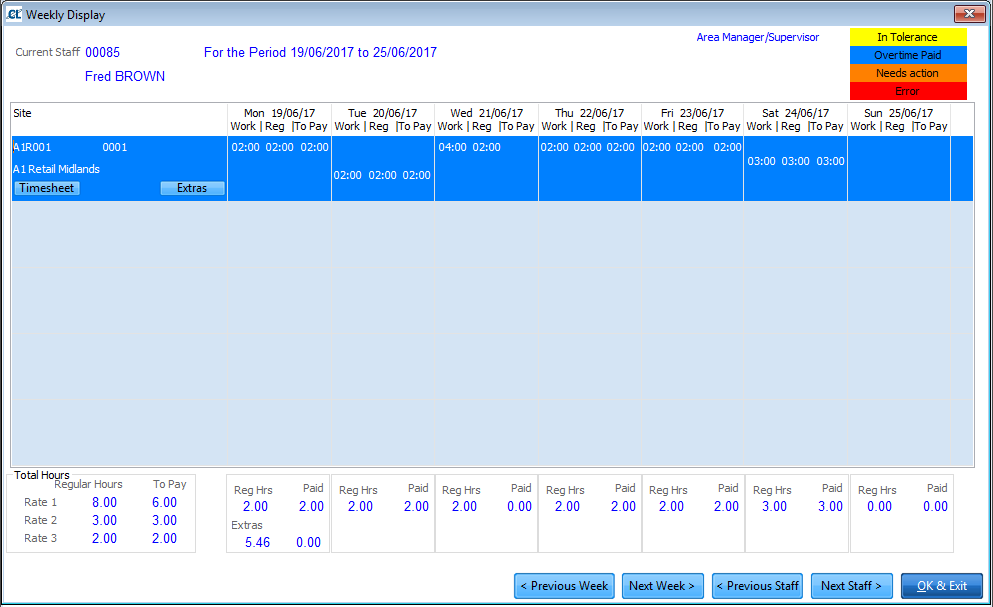
Display Staff
This option displays all the unprocessed hours for a selected employee listed by site for each week. Amendments can be made in this screen to the highlighted Hours to Pay.
Select Range
This option allows you to narrow the data in the main screen by Division, Area, Client, Site, Staff or Date.
Once you are happy with the data you can proceed to import it to the relevant pay cycle. When first opening the cycle you will be given the option to process timesheet transactions. This will check Timesheet processing for any existing records relating to that pay cycle and process them to the cycle data. If you have checked the Timesheet Processing and are happy to proceed click Yes, Proceed, if not click OK & Exit to skip this at this point.
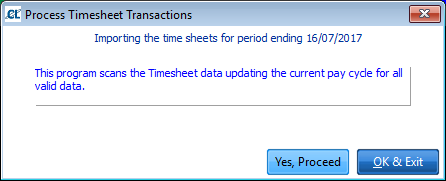
You can also import the timesheet data from within the cycle.
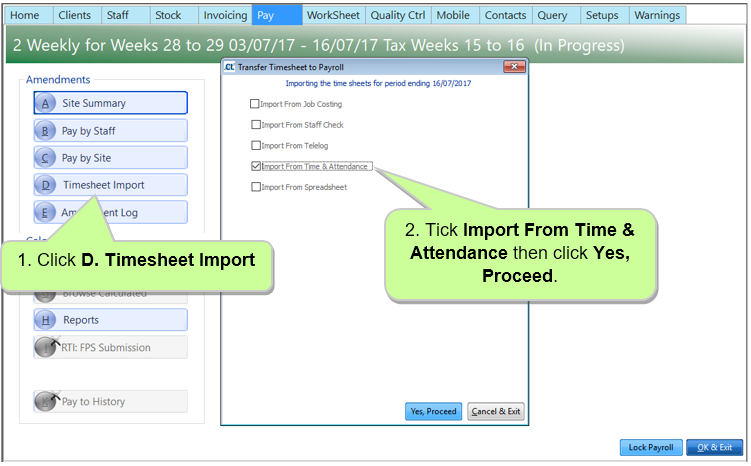
The data will update the cycle. Once it is imported the data can be amended as normal.
