Statutory Payments & Deductions |
  
|
Statutory Payments & Deductions |
|
This section will take you through setting up various types of statutory payments for individuals and deductions within CleanLink including Maternity and Paternity Pay, Statutory Sick Pay, Parental Bereavement Pay and both Fixed and Variable Attachments of Earnings orders including Student Loans. For help on setting up new types of Attachments of Earnings please see the section in Payroll Setup.
CleanLink can calculate entitlement for the various types of maternity related leave using the guidelines set out by HMRC.
The different types of leave are abbreviated in CleanLink as follows:
•Statutory Maternity Pay – SMP
•Ordinary Statutory Paternity Pay – OPP
•Additional Paternity Pay – APP
•Statutory Adoption Pay - SAP
Maternity leave records are setup by going to the Staff tab, and selecting the SMP/OPP/SAP tab.
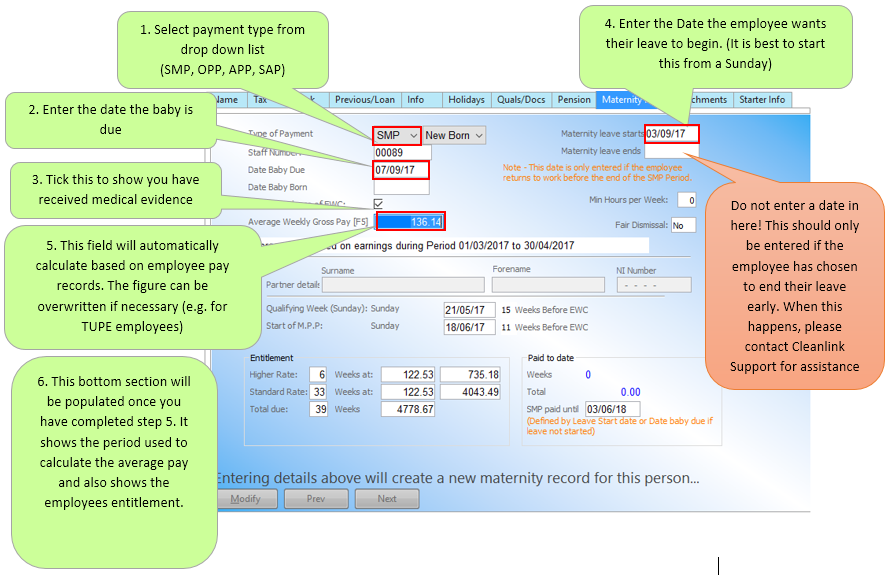
Below is an example of how to set up SMP entitlement for an employee. When doing this there are some fields that must be entered and others that are optional. The essential ones are outlined in red:
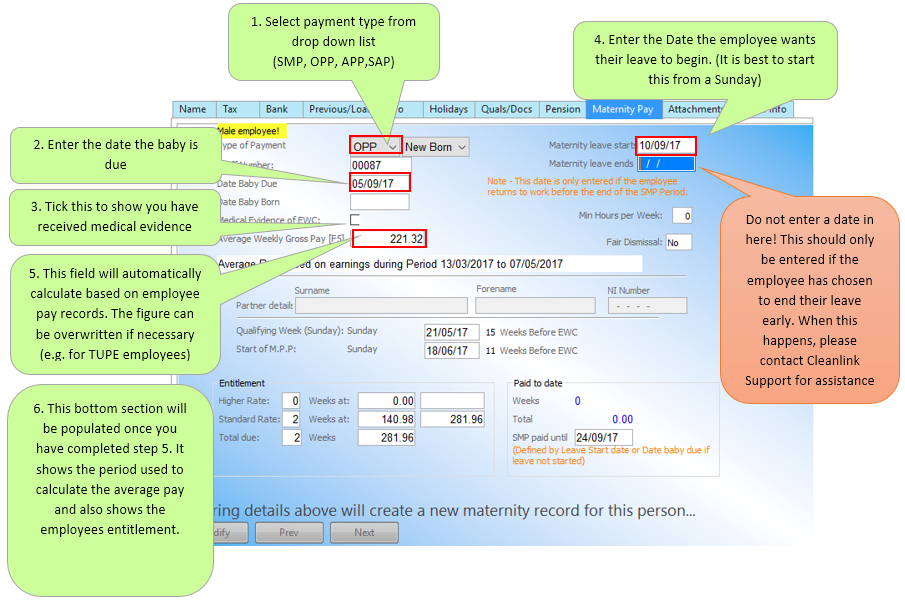
Below is an example of how to enter OPP in the same way:
Once the details above have been entered, the Maternity/Paternity payments will begin from the relevant pay cycle based on the ‘Maternity leave starts’ date. When these payments begin, you will need to remove the regular pay hours from the pay cycle. Otherwise the employee will receive both their regular pay and maternity pay.
Statutory Parental Bereavement Pay (SPBP)
CleanLink can calculate entitlement for Statutory Parental Bereavement Pay related leave using the guidelines set out by HMRC.
To create a Bereavement record go the Staff record and select the Bereavement tab.
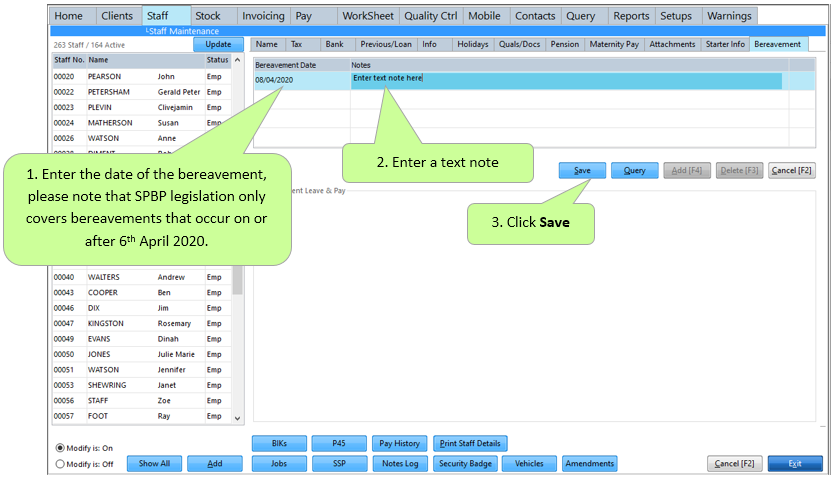
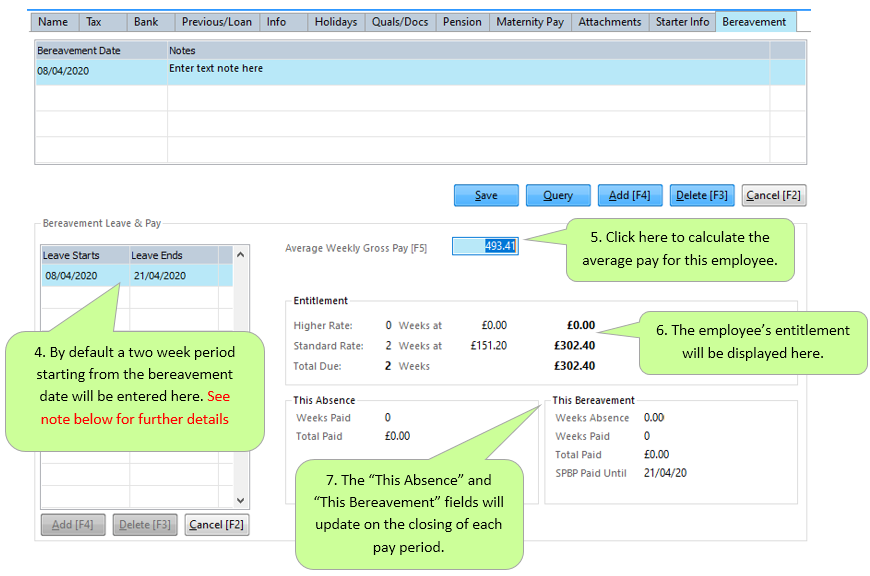
Note: The dates of the leave period can be amended but must always be taken in whole weeks. Employees have 56 weeks from the bereavement date to use their entitlement which can be taken in two separate periods of one week each. One week’s entitlement will be paid for each Sunday of the leave period that falls in a given pay period.
CleanLink can calculate whether your employee is entitled to Statutory Sick Pay. It does this by calculating their average earnings following the guidelines set out by HMRC.
SSP can be entered either by going to the Staff tab and selecting the SSP tab or when in the Pay Cycle by selecting the staff member and selecting the SSP button.
To enable CleanLink to calculate your employees SSP entitlement you must set their Qualifying Days, these are the days of the week the employee normally works. You can setup multiple patterns of working days by going to Setups tab, selecting 18.PAYE, NI & Staff Setups, and then selecting SSP Qualifying Days. Once these are set you can use them as a pick list when in the Tax tab of the Staff record.
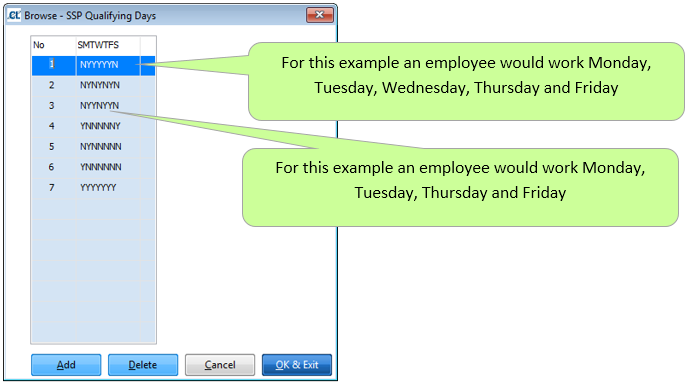
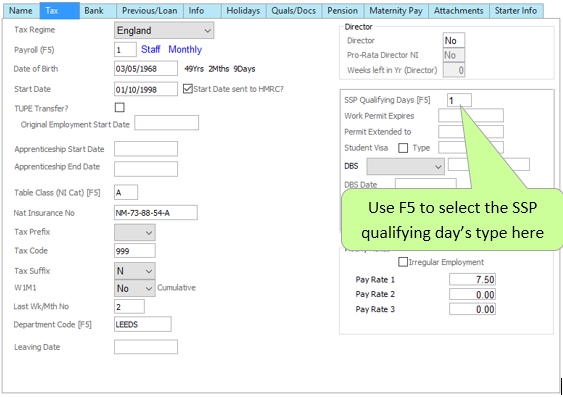
For this example we will be using, the employee works 5 days a week; Monday to Friday.
Here is an example of how to enter a period of sickness. This example is entered through the Staff SSP tab but it is the same principle if done through the pay cycle.
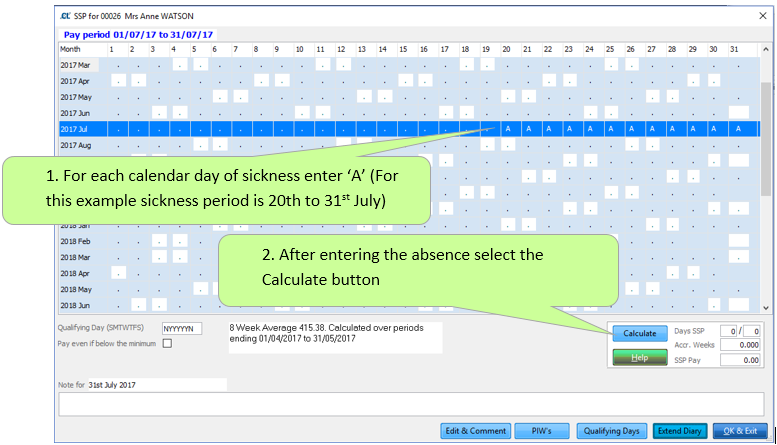
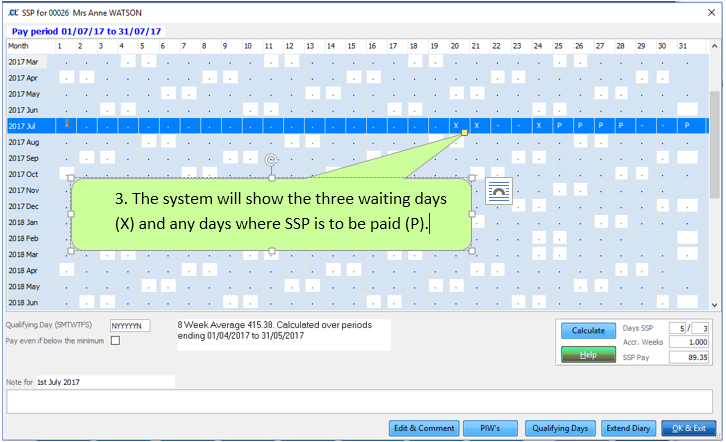
The period of sickness has now been entered. The SSP payment will be fully calculated for the Pay Cycle once you have ‘Calculated’ the pay for that Cycle.
Attachments covers fixed, variable and banded Attachment of Earnings as well as CSA deductions and Student Loan deductions. Various types of attachments are setup by going to Setups, selecting R. PAYE, NI & Staff Setups, and then selecting Attachments and Student Loans. Please see the Attachment of Earning Setup section of Payroll Setups for further information on setting the various attachment types.
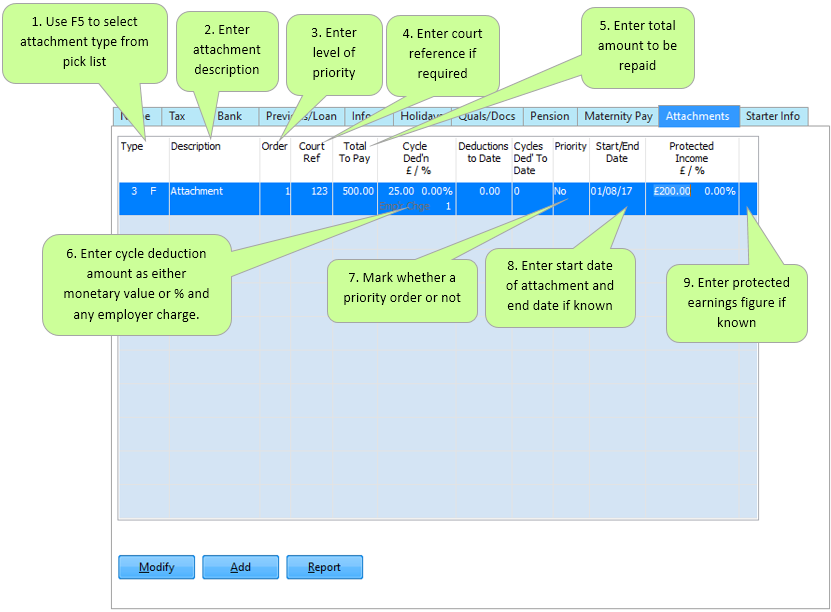
To action an attachment of earnings order you need to go to Staff tab, and select the Attachments tab. Below are examples of the process of what is needed to be entered for both fixed and variable attachment orders.
Fixed
The minimum information you need to complete a fixed attachment is Attachment type, Total to pay, Cycle deduction £/%, and Start date.
Variable, DWP or Banded
The minimum information you need to complete a variable or banded attachment is Attachment Type, Total To Pay and Start date.
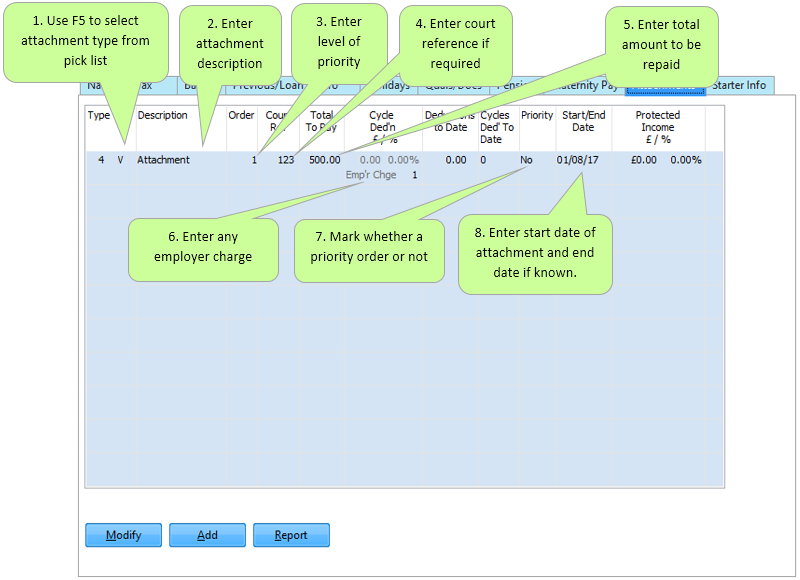
Once this has been set, the attachment will be actioned the next time you calculate the relevant pay cycle for that employee.
Student Loans
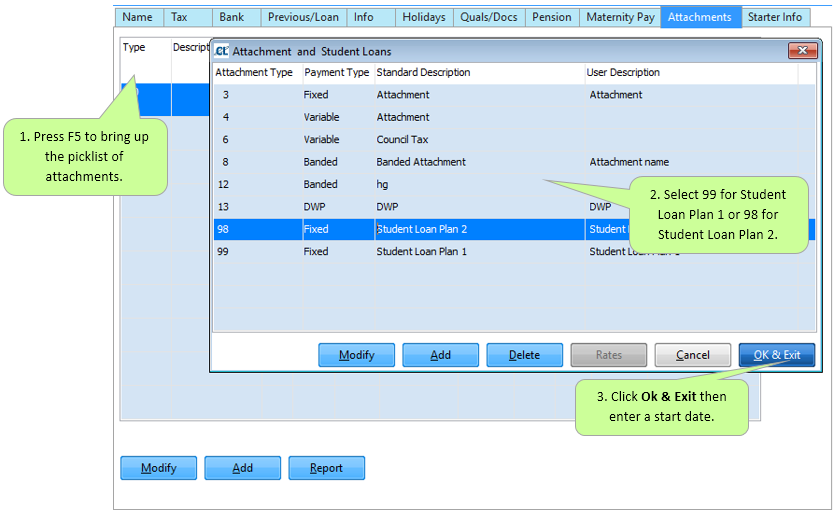
If you need to add a Student loan for an employee this can be done by going to Staff > Attachments > Add.