Staff and Regular Pay |
  
|
Staff and Regular Pay |
|
To set up a staff with regular pay at a site, you can either do this from a site or from the staff tab.
To set up regular pay from a site, go to Clients tab, choose your client and select the site where they will be working. Select the Pay Regular button.
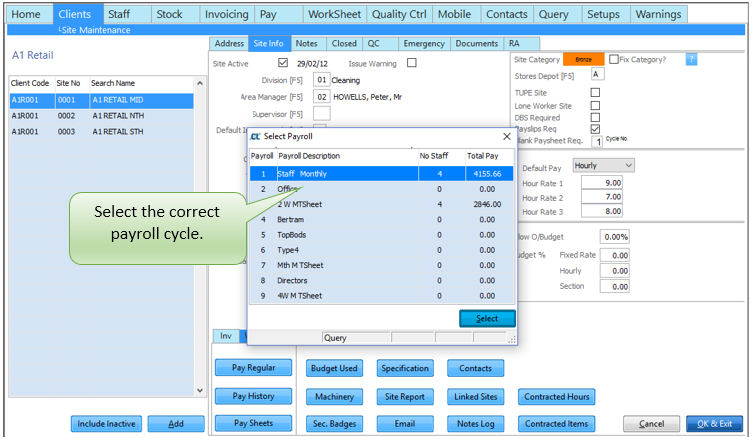
The following screen will be displayed:
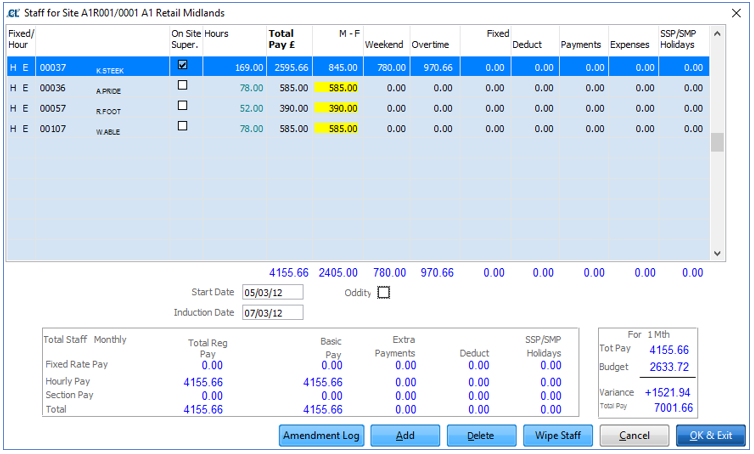
Add Staff to the table by either selecting the Add button, or by using F5 button in 'Employee/Contractor' field and if hourly pay, enter hours using double click or F5 key in 'Yellow' column. For Fixed Rate Pay enter amount in required column. Enter the date the employee started at this site in the 'Start Date' field. Use the Exit button to save details.
To set up regular pay from a Staff record, from the Main Menu select the ‘Staff’ tab.
Select the relevant Employee from the list and select the Jobs button from the bottom.
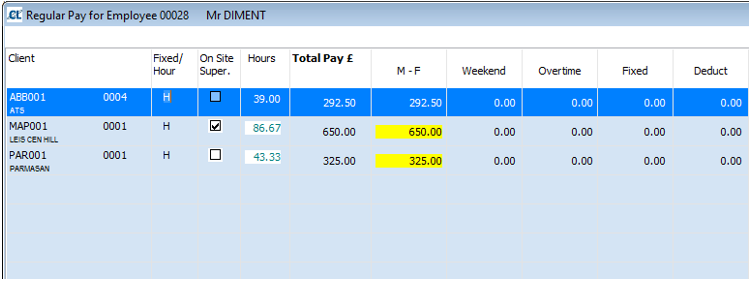
Hit ‘F5’ and select Site.
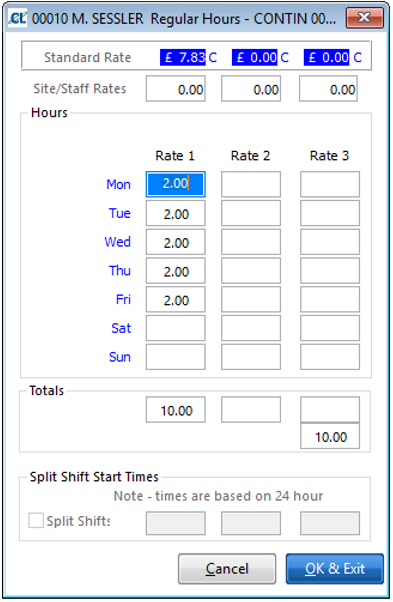
Hourly Pay:
In the Yellow column ‘F5’ and add Hours (below example for a Monthly cycle)
Fixed Rate Pay:
Enter amounts in Rate 1 column.
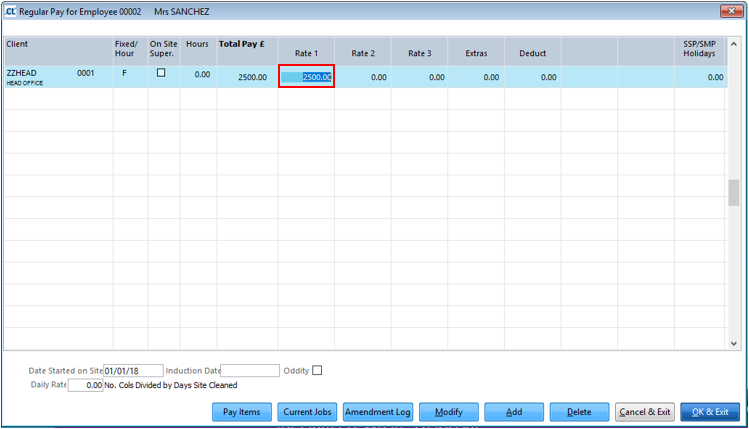
A permanent oddity can also be added here if required by ticking the Oddity box.
‘EXIT’ or the ‘Escape’ key will save details.
You can amend Regular Pay either through the Site or Staff records, to amend from a site, go to Clients tab, choose your client and select the site where they are working. Select the Pay Regular button.
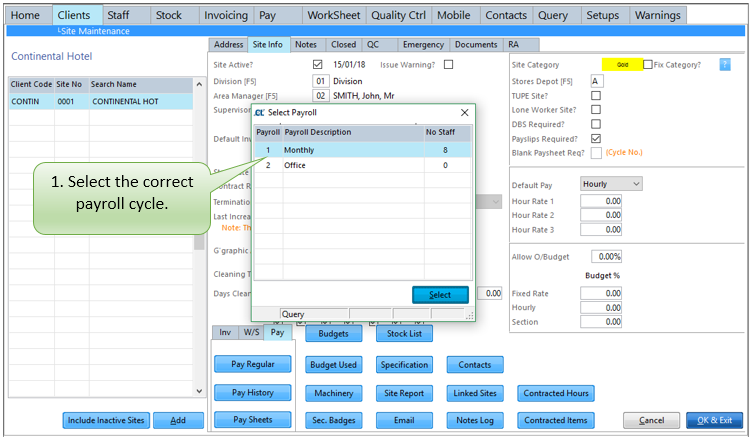


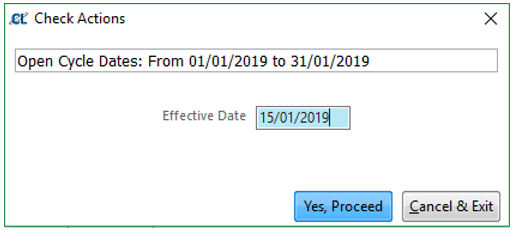
If this pay cycle is currently In Progress you will receive this message, if you would like to apply your amendment within this cycle enter the date the changes should apply from and then click OK & Exit. If you do not want the changes to be made in the current cycle click Cancel & Exit.