Running a QC Cycle |
  
|
Running a QC Cycle |
|

Opening a QC Cycle copies the scheduled site visits for that period into the cycle. These visits can be amended, and other visits added or deleted as required. The scheduled site visits are then processed, either by sending to mobile devices, or by printing out the necessary forms. Once this is done, the cycle is closed. The site visit responses can then be recorded against the scheduled site visits
To add, amend or delete a site visit for a Quality Control cycle, go to Quality Ctrl > A. QC Cycles Calendar: Open/Close/Manage Cycles Select your cycle > All Site Summary.
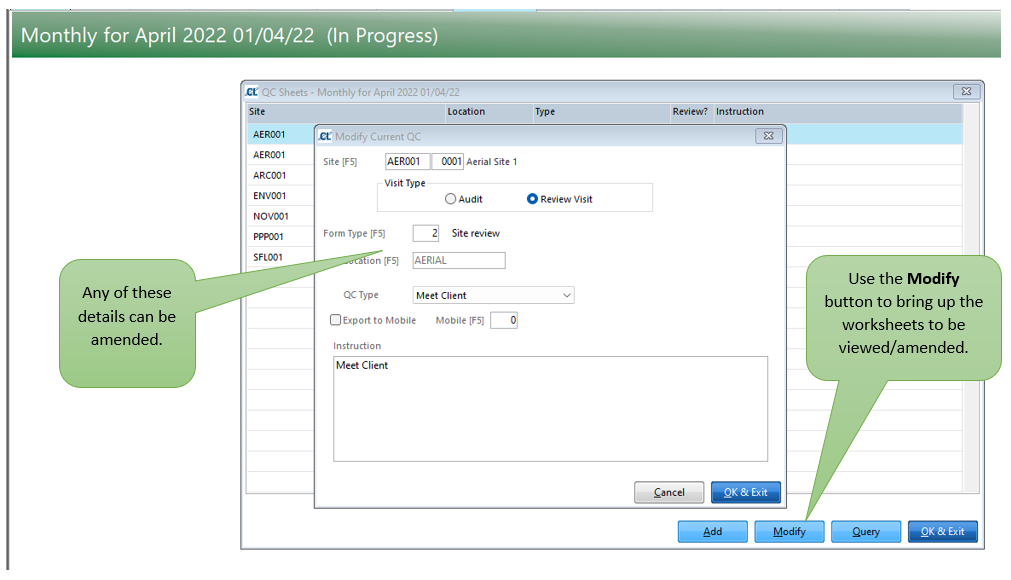
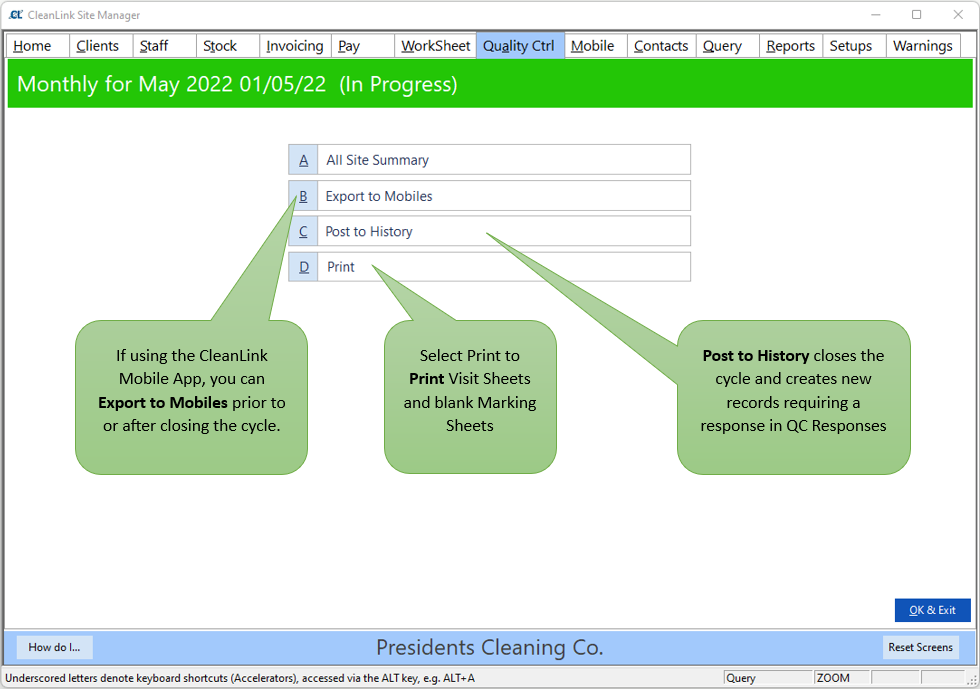
Selecting the Export to Mobiles button will send the scheduled Audit requests to the inbox of the respective mobile device (only for sites that have the ‘Include in QC’ box ticked)..
Use the Post to History button to close the QC Cycle. This will prevent any further changes to the scheduled visits. NOTE: You need to close the cycle, in order for all completed audits to be marked as received.
The Print tab allows you to print either QC Visit Sheets or QC Marking Sheets for manual completion.
Example of a Visit Sheet:

Example of a Marking Sheet:

Once the Quality Control cycle has been closed, the Audit marking sheets are given their unique numbers (beginning with ‘M’). The Marking Sheets can be printed off and passed to your manager’s for completion and sign off. Once you receive the audit sheet back from your Managers, you can enter the details manually either via the Quality Ctrl > B. Record Responses screen, or by going to Client > B. Maintain Sites > QC > Enter Marks.
Entering QC Marks using the Quality Ctrl > B. Record Responses screen:

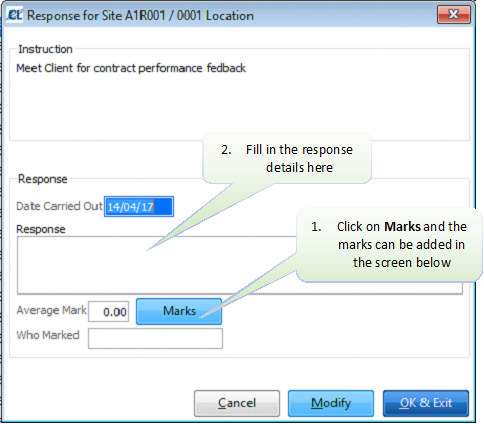
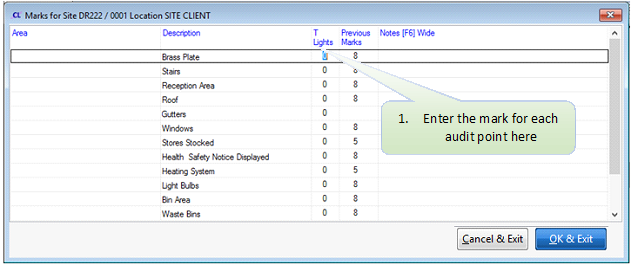
Alternatively, you can enter QC Marks by navigating to Client > B. Maintain Sites > QC > Enter Marks
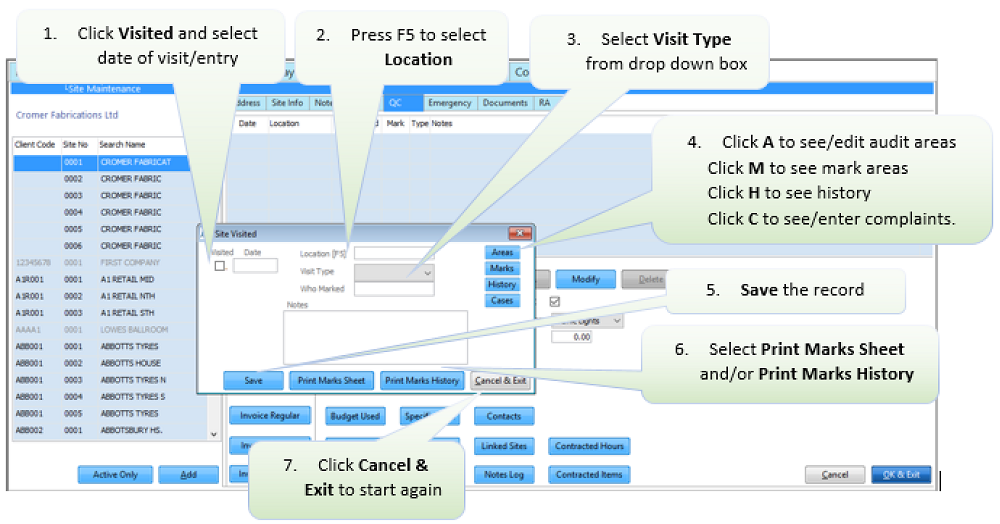
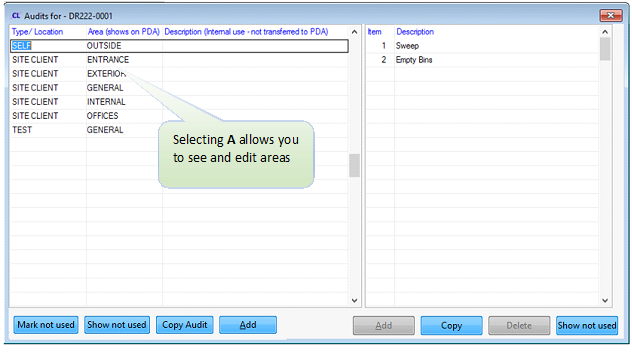
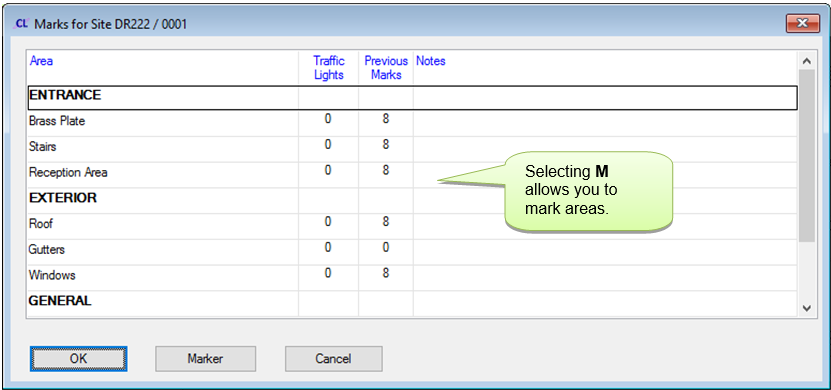
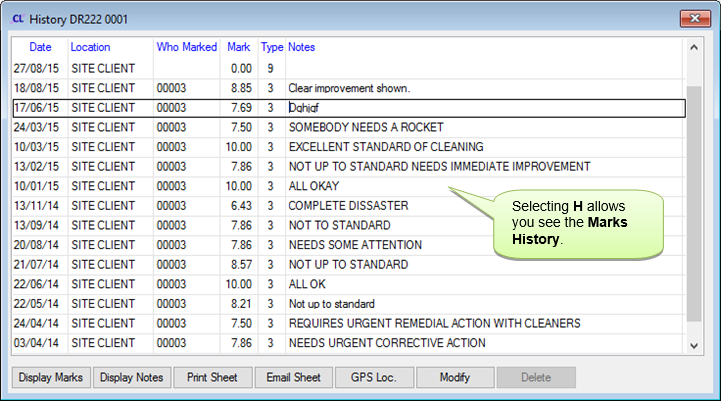
Go to the Quality Ctrl tab and select the B. Record Responses button. Use the following screen to view all outstanding Audit responses:

